Step-by-Step Guide to Building a Responsive Website
Why Every Website Needs to Be Built Responsive in 2026
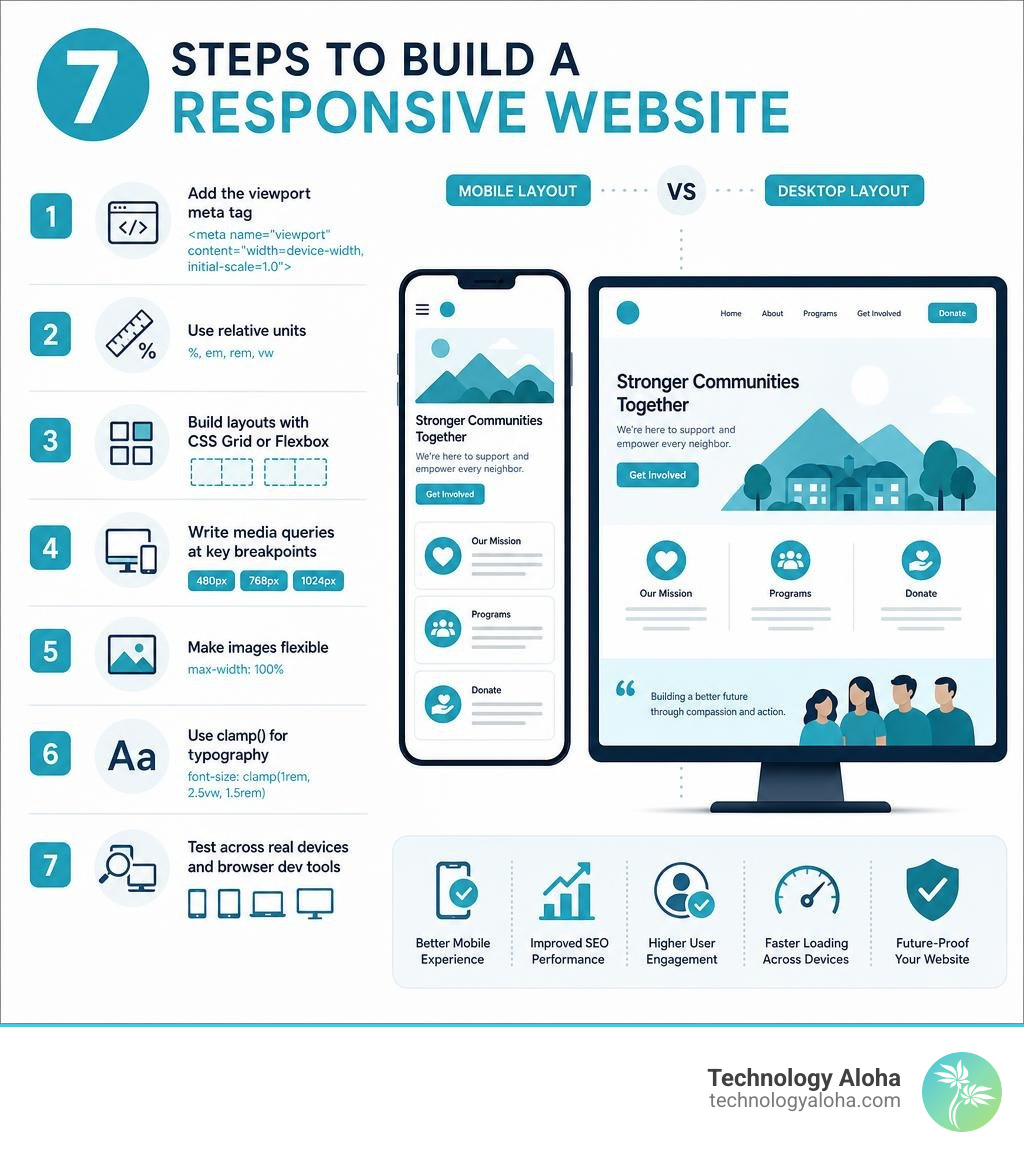
To build a responsive website, follow these core steps:

- Add the viewport meta tag to your HTML
- Use relative units (%, em, rem, vw) instead of fixed pixels
- Build layouts with CSS Grid or Flexbox
- Write media queries to adjust layouts at key breakpoints
- Make images flexible with
max-width: 100% - Use
clamp()for typography that scales automatically - Test across real devices and browser dev tools
Have you ever tried to read a website on your phone and had to pinch, zoom, and scroll sideways just to find a phone number? That friction doesn’t just frustrate visitors — it drives them away permanently.
More than 51% of all web traffic now comes from mobile devices. And 74% of users say they’re more likely to come back to a site that works well on mobile. For nonprofit leaders running food banks and community services, that’s not a design preference — it’s a donor and intake crisis waiting to happen.
A non-responsive website tells visitors — including potential donors and people seeking help — that you weren’t thinking about them.
Responsive web design fixes that. It’s the practice of using HTML and CSS to make a single website automatically adapt its layout, images, and text to any screen size — phone, tablet, or desktop — without building separate versions of the site.
The good news: in 2026, building a fully responsive site is more straightforward than ever. Modern CSS tools like Grid, Flexbox, and clamp() handle most of the heavy lifting natively.
This guide walks you through the entire process, step by step.
Handy build responsive website terms:
What is Responsive Web Design and Why It Matters
Responsive web design is not a luxury. It is the baseline standard for the modern internet. In 2026, a static desktop site is effectively broken. When you build a responsive website, you create a single digital asset that fluidly scales to fit screen widths ranging from a tiny 320-pixel smartphone up to a massive ultra-wide desktop monitor.
For a deeper dive into the core concepts, you can explore our guide on What is Responsive Web Design?.
The financial and operational consequences of ignoring responsive design are severe. Mobile web traffic consistently dominates search engine queries. Google prioritizes mobile-friendly websites in its ranking algorithms. If your site does not adapt, your search engine visibility plummets, cutting off your primary stream of organic traffic.
Furthermore, user expectations around load times and usability are unforgiving. Pages that load within 2 seconds maintain an average bounce rate of just 9%. If your site takes 5 seconds to load because it is trying to render a heavy, unoptimized desktop layout on a cellular network, your bounce rate climbs to 38%. This direct link between performance and user retention is why we emphasize that Why Responsive E-Commerce Design is Non-Negotiable for any organization trying to capture transactions or donations online.
For nonprofits and service organizations operating in Hawaii, such as food banks in Kahului and across Maui, a responsive interface directly impacts community access. If a family in need cannot easily navigate your food distribution schedule on their smartphone, your digital infrastructure has failed them. When you eliminate layout friction, you make it easier for donors to give and for recipients to find support. To understand how optimized layouts translate to real-world success, read about How Performance-Driven Design Boosts Your Bottom Line.
Step-by-Step Process to Build Responsive Website Layouts
To build a responsive website, you must move away from the outdated practice of designing with fixed pixel dimensions. Historically, web developers built layouts tailored to a standard desktop width, such as 960 pixels. Today, you must assume your layout will be viewed on devices of every imaginable shape, orientation, and pixel density.
The journey to a fully responsive site involves setting up a flexible HTML foundation, writing fluid CSS layouts, and establishing smart breakpoints. If you want to build without relying on heavy external dependencies, you can learn How to Make a Website Fully Responsive Using Only CSS – No Framework Needed 2026 – uicodenow.in. This native approach keeps your code lightweight, fast, and highly maintainable.
Before diving into the code, it helps to understand the broader framework of modern web creation. For a comprehensive overview, review our A Practical Guide to Website Design.
Setting Up the HTML Foundation and Viewport Meta Tag
Every responsive web page starts with a critical line of code in the HTML document head: the viewport meta tag. Without this tag, mobile browsers will assume they are rendering a classic desktop page. They will pretend to have a viewport width of roughly 980 pixels and scale your entire layout down to fit the small screen. This results in microscopic text and impossible-to-tap navigation links.
To prevent this, include the viewport meta tag in your HTML head. This tag should set the name attribute to viewport and the content attribute to width=device-width, initial-scale=1.0. This instructs the browser to match the page width to the physical screen width of the device and sets the initial zoom level to 100%.
Alongside the viewport tag, you must use semantic HTML structure. Elements like header, nav, main, section, article, and footer provide a logical outline for both search engines and assistive technologies. To review the absolute basics of document structure, check out our tutorial on How to Create a Basic HTML Page in 5 Steps.
Using Modern CSS to Build Responsive Website Frameworks
Once your HTML structure is secure, you can use modern CSS layout systems to build flexible containers. The two primary engines of modern responsive layouts are CSS Grid and CSS Flexbox.
CSS Flexbox is ideal for one-dimensional layouts, such as a single row of navigation links or a aligned set of footer elements. By setting display to flex on a parent container, you can easily control how child elements grow, shrink, and wrap when space becomes limited.
CSS Grid is designed for complex, two-dimensional layouts. It allows you to build responsive card grids and multi-column layouts without writing complex media queries for every device. For example, you can use the CSS grid-template-columns property with the repeat function, auto-fit keyword, and minmax function. Setting a column rule like minmax(280px, 1fr) tells the browser to create as many columns as will fit the container, provided each column is at least 280 pixels wide, and to distribute any remaining space equally.
Using these native tools results in a clean, professional presentation. For more on this design philosophy, see Why a Clean Web Page Layout is Important for Your Website.
If you prefer to accelerate your development workflow, you can use a pre-built responsive framework. Bootstrap remains a highly popular option, offering a robust, mobile-first grid system and pre-styled components that ensure immediate cross-device compatibility.
Implementing Responsive Typography and Media
A responsive layout will still fail if your text and media do not scale gracefully. Typography must adapt dynamically to avoid looking excessively large on mobile or unreadably small on wide desktop screens.
Instead of setting static pixel values for font sizes, use relative units like rem or em, and leverage the CSS clamp() function. The clamp() function takes three arguments: a minimum value, a preferred value (often calculated using viewport width units, like 2vw), and a maximum value. This ensures your headings scale fluidly between your defined limits as the viewport changes size.

Images and video require similar flexibility. By default, an image will render at its native pixel size, which can easily overflow a mobile screen. To make all images responsive, apply a global CSS rule setting max-width to 100% and height to auto. This ensures your images scale down to fit their parent containers but never stretch larger than their original dimensions, preventing pixelation.
For advanced control over image delivery, use the HTML5 picture element and the srcset attribute. This allows you to serve completely different image files based on the user’s screen width or pixel density—such as a small, highly compressed WebP image for mobile users on cellular networks, and a high-resolution image for desktop users on high-speed connections. This optimization is a key strategy outlined in The Ultimate Checklist to Speed Up Page Load Time WordPress.
Advanced Workflows and Testing Strategies
Building a responsive site is only half the battle; you must also establish a reliable workflow and verify your design across a wide range of real-world scenarios. This requires a shift in mindset from designing static pages to designing dynamic, user-centric systems. To align your technical execution with modern usability standards, review the Best Practices for User-Centric Website Design and UX.
Mobile-First vs. Desktop-First Design Workflows
When planning your CSS, you must choose between a mobile-first and a desktop-first workflow.
A desktop-first workflow starts with the large-screen layout and uses max-width media queries to strip away styles, collapse columns, and hide elements as the screen shrinks. This often results in bloated, complex stylesheets with numerous overrides.
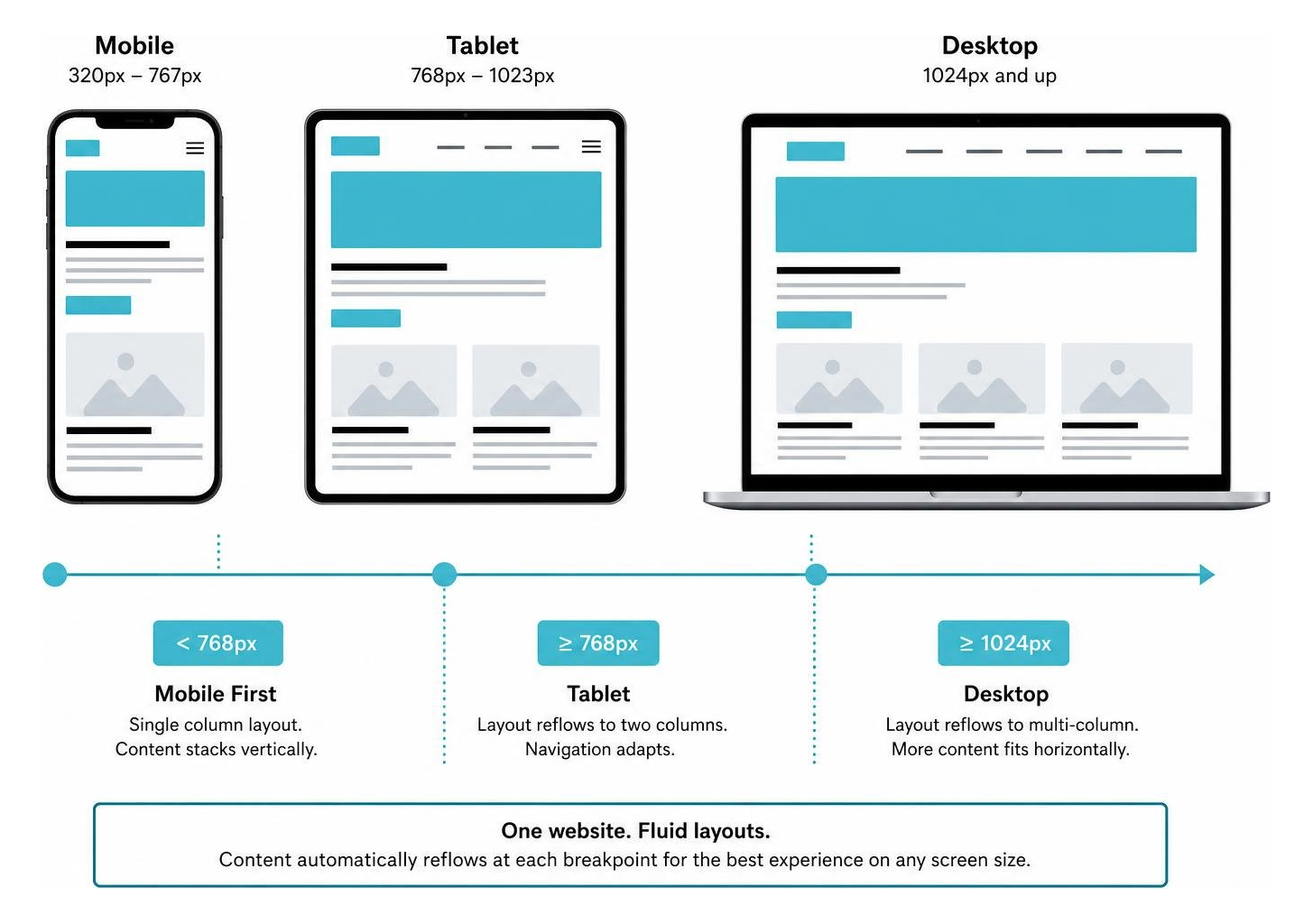
We strongly recommend a mobile-first workflow. In this approach, you write your base CSS for the smallest screens first. Because mobile layouts are typically simple, single-column vertical stacks, your base styles remain incredibly lean. You then use min-width media queries to progressively introduce design complexity—such as multiple columns, larger typography, and decorative hover effects—as more screen real estate becomes available.
This workflow is highly efficient and aligns perfectly with the Recommended Workflow | Etch Documentation, which emphasizes content-driven breakpoints over arbitrary device standards. For a complete strategic overview of this approach, read The Ultimate Guide to User-Centric Website Design.
Common Mistakes When You Build Responsive Website Projects
Even experienced developers fall into common traps when they build a responsive website. Recognizing these mistakes early in your design phase will save hours of debugging later.
First, avoid using fixed pixel widths on structural containers. Sizing a main content area to a rigid 1200px guarantees horizontal scrolling on smaller screens. Always use relative units like percentages, viewport units, or max-width constraints.
Second, do not forget about touch target sizes. Mobile users navigate with their thumbs, not high-precision mouse cursors. Ensure all buttons, navigation links, and form fields are at least 48×48 pixels in size and have adequate spacing around them to prevent accidental taps.
Third, maintain a minimalist approach to mobile layouts. Trying to cram every single desktop sidebar, banner, and decorative background image onto a mobile screen ruins the user experience and slows down your site. To understand why less is often more, read Why Simple Website Design Ideas Result in a Minimal Clean and Better Website.
To clarify the structural differences in web layouts, let us look at how responsive design compares to adaptive design:
| Feature | Responsive Design | Adaptive Design |
|---|---|---|
| Layout Fluidity | Completely fluid; scales continuously across all screen widths. | Rigid; snaps to specific pre-defined screen widths. |
| Codebase | Single HTML and CSS file serving all devices. | Multiple templates designed for specific device categories. |
| Implementation | Built using fluid grids, Flexbox, and media queries. | Built using server-side detection or distinct CSS stylesheets. |
| Maintenance | Highly efficient; updates apply globally to all views. | Complex; requires maintaining multiple layout templates. |
Frequently Asked Questions about Responsive Web Design
To help you master the nuances of responsive development, we have compiled answers to the most common questions designers and organizations face.
What is the difference between responsive and adaptive design?
Responsive design uses a single HTML document with fluid, relative grid systems and CSS media queries to dynamically scale and reflow the layout to fit any screen size. The transition between screen sizes is completely seamless.
Adaptive design, on the other hand, delivers distinct, pre-designed layout templates based on the detected device type or screen width. Instead of scaling fluidly, the site detects the user’s device and loads the closest matching static template (such as a template specifically built for 768-pixel tablets). While adaptive design can offer highly customized experiences, it is significantly more complex to build and maintain than responsive design.
How do you choose the right breakpoints for a responsive site?
Do not choose breakpoints based on specific device models, such as the latest iPhone or tablet. The physical dimensions of mobile devices change constantly, and designing for specific devices will quickly make your CSS obsolete.
Instead, let your content dictate your breakpoints. Start with your mobile-first layout and slowly expand your browser window. When the layout begins to look awkward—such as text lines becoming uncomfortably long or navigation elements overlapping—that is your breakpoint. Add a media query at that exact width to adjust the layout. Standard, safe starting ranges for general breakpoints include 576px for mobile landscape, 768px for tablets, and 992px or 1200px for laptops and desktops.
How do you test if a website is truly responsive?
Testing should occur continuously throughout your development cycle. You can start by using the responsive design emulator inside your browser’s Developer Tools (accessible via right-click and selecting Inspect). This tool allows you to drag the viewport margins to any width and simulate popular device screens.
However, browser emulators are not perfect. You must also test your site on actual physical devices—including older iOS and Android phones—to verify touch target accuracy, scroll behavior, and loading performance.
Finally, run your site through automated performance tools like Google Lighthouse. These tools analyze your mobile rendering, contrast ratios, and page speed. However, automated scores do not tell the whole story. To understand the nuances of automated testing, read Why Your Google PageSpeed Insights Score Is Lying to You.
Conclusion
Building a responsive website is no longer a technical option; it is a fundamental pillar of digital accessibility and organizational success. Whether you are running a business in Kahului, Maui, or managing a critical nonprofit community service, your website is your primary bridge to the public. If that bridge is broken on mobile devices, you are turning away the very people you want to reach.
By establishing a solid HTML foundation, leveraging CSS Grid and Flexbox, implementing fluid typography, and adopting a disciplined mobile-first workflow, you can build a fast, beautiful website that serves every visitor perfectly.
At Technology Aloha, we specialize in building scalable digital infrastructure and high-conversion, user-centered websites for nonprofits and community organizations. We focus on reducing friction for your donors and maximizing accessibility for those who need your services most.
Ready to transform your digital presence? Explore our Web Design Services and let us build a high-performance website that supports your mission.