What Is a Basic HTML Page (And How to Build One Fast)
As we look ahead in 2026, a basic HTML page is the starting point for every website on the internet — and building one takes less than five minutes with the right structure.

Here’s the core structure of a basic HTML page:
— contains all visible content (text, images, links)- Save the file as
index.html — then open it in any browser
That’s it. Five components. One file.
HTML — HyperText Markup Language — is used in over 95% of all web pages today. It isn’t a programming language. It’s a markup language that wraps content in tags to tell browsers how to display it. Think of it as the skeleton of every page you’ve ever visited.
If you’re building a website for your business, understanding this foundation matters. A page that’s poorly structured from the start creates problems later — with search visibility, accessibility, and design.
This guide walks you through the full process in five clear steps.
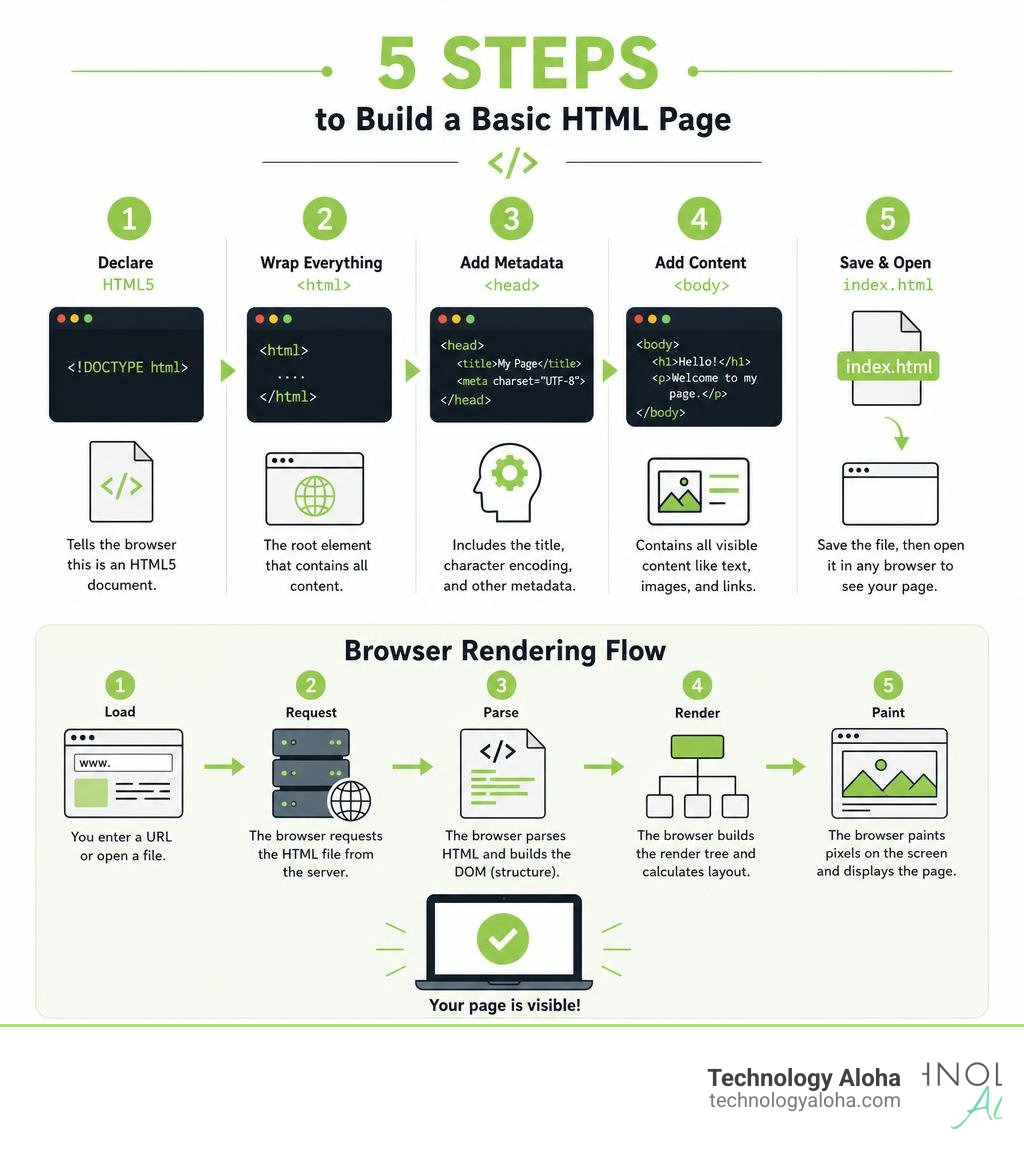
Understanding the Anatomy of a Basic HTML Page
Every professional website, from global platforms to local businesses right here in Kahului, HI, begins with a clean document outline. Before you start writing code, you must understand how these elements fit together.
To write a valid basic HTML page, you must follow a strict structural hierarchy. If you omit structural elements or write them out of order, modern web browsers will try to guess what you meant, but this often leads to broken layouts, slow load times, and poor search engine indexing.
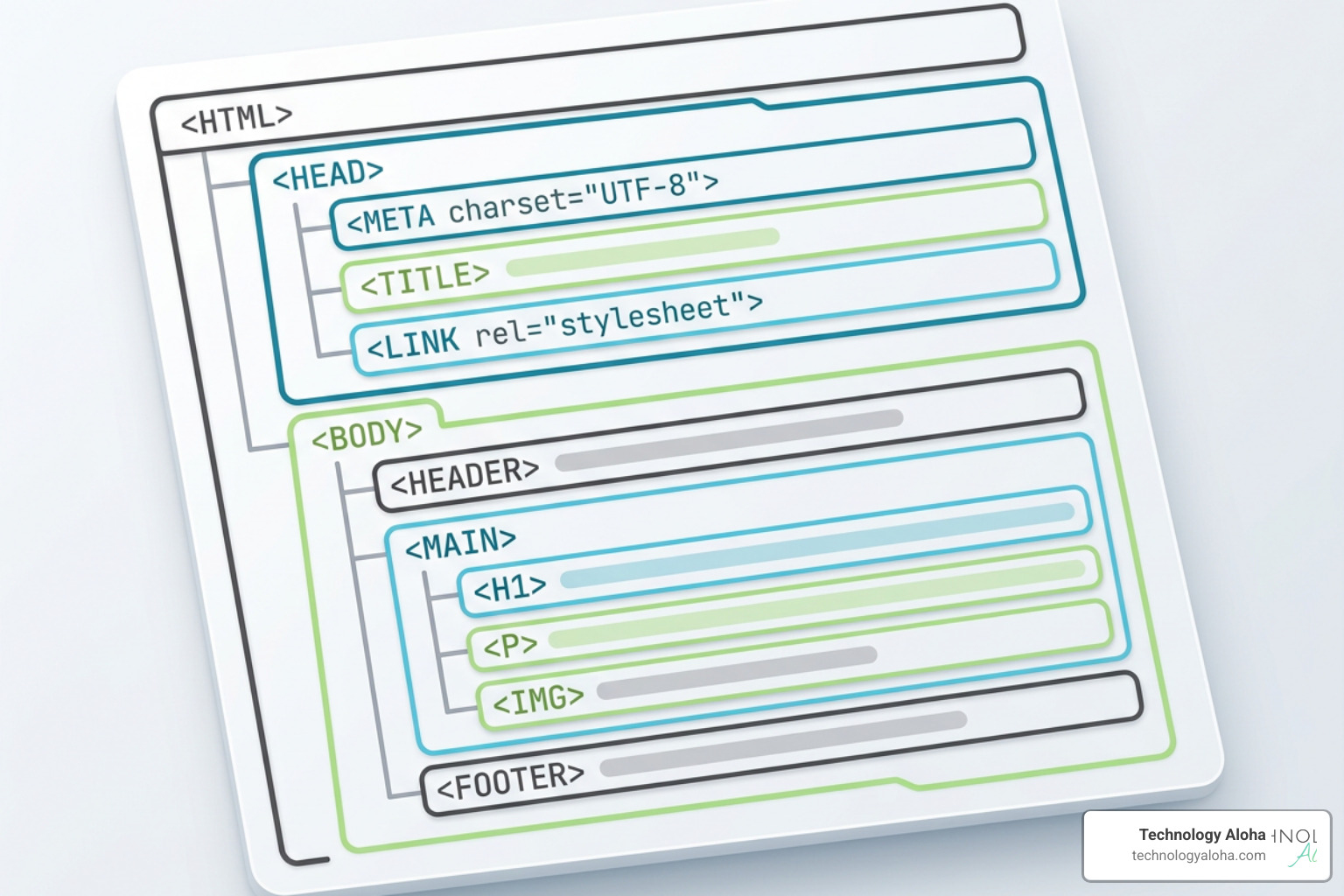
To get a firm grasp on the underlying rules of markup, you can explore the Basic HTML syntax – Learn web development | MDN guide. For now, let us break down the critical elements that make up the skeleton of your document.
First, the document must begin with the doctype declaration:
Directly following the doctype is the root element:
Inside the root element, the document divides into two distinct sections: the head and the body.
The Role of the Head Section in a Basic HTML Page
The
Within the head, we specify the character encoding using
Next is the viewport meta tag:
The head section is also where we place the </code> tag. The title is what appears on the browser tab and serves as the primary headline in search engine results. Crafting a descriptive, keyword-rich title is one of the first steps toward strong search engine optimization. If you want to dive deeper into how these initial structural choices impact your overall digital footprint, read our guide on <a href="https://technologyaloha.com/the-first-steps-to-web-design-a-tutorial/">The First Steps to Web Design: A Tutorial</a>.</p>
<h3 class="wp-block-heading" id="the-role-of-the-body-section-in-a-basic-html-page">The Role of the Body Section in a Basic HTML Page</h3>
<p class="wp-block-paragraph">While the head section manages behind-the-scenes configuration, the <code><body>
<script data-cfasync="false" data-no-defer="1" data-no-minify="1" data-no-optimize="1">if(typeof ewww_webp_supported==="undefined"){var ewww_webp_supported=!1}if(ewww_webp_supported){document.body.classList.add("webp-support")}</script></code> section is where your actual content lives. Every heading, paragraph, image, video, and link that a user sees on their screen must reside between the opening <code><body>
<script data-cfasync="false" data-no-defer="1" data-no-minify="1" data-no-optimize="1">if(typeof ewww_webp_supported==="undefined"){var ewww_webp_supported=!1}if(ewww_webp_supported){document.body.classList.add("webp-support")}</script></code> and closing <code></body></code> tags.</p>
<p class="wp-block-paragraph">Writing clean body content requires strict attention to hierarchy. We use heading tags, ranging from <code></code></p>
<p class="wp-block-paragraph">Add a short paragraph of text:
<code><p>This is a basic HTML page built from scratch. It is clean, fast, and structured correctly.</p></code></p>
<p class="wp-block-paragraph">Close the body section:
<code></body></code></p>
<p class="wp-block-paragraph">Finally, close the HTML root tag:
<code></html></code></p>
<p class="wp-block-paragraph">If you want to compare this to a production-ready template that includes additional modern configurations, you can review the <a href="https://www.joshwcomeau.com/snippets/html/html-skeleton/" target="_blank" rel="noopener">Basic HTML skeleton file • Josh W. Comeau</a> for a detailed breakdown of expert setups.</p>
<h3 class="wp-block-heading" id="step-3-add-structured-content-with-headings-and-paragraphs">Step 3: Add Structured Content with Headings and Paragraphs</h3>
<p class="wp-block-paragraph">Now that your skeleton is complete, let us expand the content. A good webpage uses a logical flow of headings to guide the reader’s eye.</p>
<p class="wp-block-paragraph">When adding headings, remember the golden rule of web design: use only one <code><h1></code> tag per page. The <code><h1></code> represents the main topic of the document. For subheadings, use <code><h2></code> tags, and if you need to break those subheadings down further, use <code><h3></code> tags.</p>
<p class="wp-block-paragraph">Let us add a new section to our body. Below your first paragraph, type:
<code><h2>About This Project</h2></code>
<code><p>We are learning how to write clean code. By mastering the fundamentals of markup, we can build faster websites that rank better on search engines.</p></code></p>
<p class="wp-block-paragraph">By keeping your headings sequential—never skipping from an <code><h1></code> directly to an <code><h3></code>—you ensure that screen readers can easily navigate your page, making your site accessible to users with visual impairments.</p>
<h3 class="wp-block-heading" id="step-4-embed-hyperlinks-and-images">Step 4: Embed Hyperlinks and Images</h3>
<p class="wp-block-paragraph">A webpage is not complete without connections and visuals. Let us add a link and an image to our page.</p>
<p class="wp-block-paragraph">To create a hyperlink, we use the anchor tag <code><a></code> combined with the <code>href</code> attribute, which specifies the destination URL. Let us link to our main site. Below your last paragraph, type:
<code><a href="https://technologyaloha.com">Visit Technology Aloha</a></code></p>
<p class="wp-block-paragraph">Next, let us add an image using the <code><img></code> tag. The image tag is a self-closing tag, meaning it does not require a separate closing <code></img></code> tag. It relies on two critical attributes: <code>src</code> (the source path to the image file) and <code>alt</code> (alternative text describing the image).</p>
<p class="wp-block-paragraph">Type the following line to add an image:
<code><img decoding="async" src="https://technologyaloha.com/wp-content/uploads/2021/04/technology-aloha-logo.png" alt="Technology Aloha Logo"></code></p>
<p class="wp-block-paragraph">The <code>alt</code> attribute is incredibly important. It displays if the image fails to load, helps search engines understand what the image represents, and allows screen readers to describe the visual element to visually impaired users. To make sure you are using these tags correctly, read our detailed guide on <a href="https://technologyaloha.com/how-to-use-alt-tags-for-accessibility/">How to Use Alt Tags for Accessibility</a>.</p>
<h3 class="wp-block-heading" id="step-5-save-and-view-your-page-in-a-browser">Step 5: Save and View Your Page in a Browser</h3>
<p class="wp-block-paragraph">You have written the code; now it is time to see your creation in action.</p>
<p class="wp-block-paragraph">First, save your changes in your text editor by pressing <code>Ctrl + S</code> on Windows or <code>Cmd + S</code> on macOS.</p>
<p class="wp-block-paragraph">Next, open your file manager and locate your project folder. Double-click the <code>index.html</code> file. Your default web browser (such as Chrome, Safari, or Firefox) will launch and render your code as a fully functional webpage.</p>
<p class="wp-block-paragraph">If you want to inspect your work or debug any mistakes, right-click anywhere on your new page and select “Inspect” or “Inspect Element.” This opens the browser’s Developer Tools, allowing you to see your HTML structure in real-time and test changes instantly.</p>
<h2 class="wp-block-heading" id="best-practices-for-clean-accessible-and-maintainable-code">Best Practices for Clean, Accessible, and Maintainable Code</h2>
<p class="wp-block-paragraph">Writing HTML is easy, but writing <em>good</em> HTML requires discipline. When you build websites for your business, clean code directly impacts your load speeds, search engine rankings, and user experience.</p>
<p class="wp-block-paragraph">One of the most important modern standards is using semantic HTML. In the early days of web design, developers built pages using generic <code><div></code> tags for every layout block. Today, we use specific semantic tags that tell the browser exactly what kind of content is inside them.</p>
<table>
<thead>
<tr>
<th style="text-align:left;">Semantic Tag</th>
<th style="text-align:left;">Generic Tag Replacement</th>
<th style="text-align:left;">Purpose / Best Practice</th>
</tr>
</thead>
<tbody>
<tr>
<td style="text-align:left;"><code><header></code></td>
<td style="text-align:left;"><code><div class="header"></code></td>
<td style="text-align:left;">Contains introductory content, logos, and primary navigation.</td>
</tr>
<tr>
<td style="text-align:left;"><code><nav></code></td>
<td style="text-align:left;"><code><div class="nav"></code></td>
<td style="text-align:left;">Wraps major navigation blocks and menus.</td>
</tr>
<tr>
<td style="text-align:left;"><code><main></code></td>
<td style="text-align:left;"><code><div class="content"></code></td>
<td style="text-align:left;">Holds the unique, primary content of the document. Only use once per page.</td>
</tr>
<tr>
<td style="text-align:left;"><code><section></code></td>
<td style="text-align:left;"><code><div class="section"></code></td>
<td style="text-align:left;">Groups related content together under a shared theme.</td>
</tr>
<tr>
<td style="text-align:left;"><code><footer></code></td>
<td style="text-align:left;"><code><div class="footer"></code></td>
<td style="text-align:left;">Contains copyright information, contact details, and secondary links.</td>
</tr>
</tbody>
</table>
<p class="wp-block-paragraph">Using these semantic tags instead of generic containers makes your document readable for search engines and assistive technologies. To learn more about how clean code choices improve your site’s usability for everyone, check out our comprehensive guide on <a href="https://technologyaloha.com/how-to-make-your-website-accessible/">How to Make Your Website Accessible</a>.</p>
<p class="wp-block-paragraph">Additionally, always write your tags in lowercase for consistency, keep your attributes quoted, and use comments to document your layout. You can add a comment to your HTML using the following syntax:
<code><!-- This is a comment that the browser will ignore --></code></p>
<p class="wp-block-paragraph">Comments are incredibly helpful for marking the beginning and end of complex structural sections, making it much easier to update your website months down the road.</p>
<h2 class="wp-block-heading" id="frequently-asked-questions-about-html-basics">Frequently Asked Questions About HTML Basics</h2>
<h3 class="wp-block-heading" id="what-is-the-difference-between-an-html-tag-and-an-html-element">What is the difference between an HTML tag and an HTML element?</h3>
<p class="wp-block-paragraph">People often use these terms interchangeably, but they refer to different parts of your code. </p>
<p class="wp-block-paragraph">An HTML tag is the individual markup character used to open or close a command. For example, <code><p></code> is the opening tag, and <code></p></code> is the closing tag. </p>
<p class="wp-block-paragraph">An HTML element consists of the entire package: the opening tag, the content inside, and the closing tag. For example, <code><p>This is a paragraph.</p></code> is the complete HTML element.</p>
<h3 class="wp-block-heading" id="why-are-self-closing-tags-used-in-html">Why are self-closing tags used in HTML?</h3>
<p class="wp-block-paragraph">Most HTML elements wrap around content, which requires an opening tag and a closing tag to show where the formatting begins and ends. However, some elements do not contain text or wrap other tags. These are called “void elements.”</p>
<p class="wp-block-paragraph">Void elements—such as images <code><img></code>, line breaks <code><br></code>, and horizontal rules <code><hr></code>—simply insert something directly into the page. Because they do not wrap content, they do not need a closing tag. In modern HTML5, you can write them simply as <code><img></code> or <code><br></code> without a trailing slash.</p>
<h3 class="wp-block-heading" id="how-do-html-attributes-work">How do HTML attributes work?</h3>
<p class="wp-block-paragraph">Attributes provide additional information or configuration settings for an HTML element. They always appear inside the opening tag and are written as name-value pairs, like <code>name="value"</code>.</p>
<p class="wp-block-paragraph">For example, in <code><a href="https://technologyaloha.com"></code>, <code>href</code> is the attribute name, and the URL is the attribute value. Attributes allow you to control how elements behave, where links point, how images scale, and how search engines catalog your content.</p>
<h2 class="wp-block-heading" id="conclusion">Conclusion</h2>
<p class="wp-block-paragraph">In 2026, building a <strong>basic HTML page</strong> is the first step toward taking full control of your digital presence. When you understand the underlying structure of the web, you can make smarter decisions about your company’s website design, search engine optimization, and user accessibility.</p>
<p class="wp-block-paragraph">While writing basic markup is a fantastic skill to learn, building a high-converting, fully responsive, and accessible business website requires a strategic blend of design expertise and technical development.</p>
<p class="wp-block-paragraph">At Technology Aloha, we combine data-driven insights with cohesive branding to build custom, high-performance websites that turn visitors into loyal customers. Whether you need a simple, streamlined landing page or a robust digital platform, we are here to help your business grow.</p>
<p class="wp-block-paragraph">Ready to take your online presence to the next level? Explore our <a href="https://technologyaloha.com/web-design/">Technology Aloha Web Design Services</a> and let us discuss how we can build a powerful, accessible website tailored to your business goals.</p>
<script type="application/ld+json">{"@context": "https://schema.org", "@graph": [{"@type": "Article", "headline": "Basic HTML Page Guide: Build Fast | Technology Aloha", "description": "Learn how to build a basic HTML page in minutes with a clean structure, essential tags, and SEO tips. Start coding today.", "author": {"@type": "Person", "name": "Jillyn Dillon"}, "publisher": {"@type": "Organization", "name": "Technology Aloha", "logo": {"@type": "ImageObject", "url": "https://technologyaloha.com/wp-content/uploads/2018/07/TAloha-Logo-gray-gradient-web.png"}}, "datePublished": "2026-06-16T16:43:07+00:00", "dateModified": "2026-06-17T02:43:17.123264", "mainEntityOfPage": {"@type": "WebPage", "@id": "https://technologyaloha.com/how-to-create-a-basic-html-page-in-5-steps/"}, "image": "https://images.unsplash.com/photo-1515879218367-8466d910aaa4?crop=entropy&cs=tinysrgb&fit=max&fm=jpg&ixid=M3w2MTMxNjF8MHwxfHNlYXJjaHwyfHxiYXNpYyUyMGh0bWwlMjBwYWdlJTIwY29kZSUyMGVkaXRvcnxlbnwwfDB8fHwxNzgxMzQ3MzkxfDA&ixlib=rb-4.1.0&q=80&w=1080"}, {"@type": "FAQPage", "mainEntity": [{"@type": "Question", "name": "What is a basic HTML page?", "acceptedAnswer": {"@type": "Answer", "text": "A basic HTML page is the starting structure for a website, built with HTML tags that tell browsers how to display content. HTML is a markup language, not a programming language, and acts as the skeleton of a web page."}}, {"@type": "Question", "name": "What are the main parts of a basic HTML page?", "acceptedAnswer": {"@type": "Answer", "text": "A basic HTML page includes a doctype declaration, the root html element, a head section for metadata, title, and character encoding, and a body section for visible content such as text, images, and links. The file is typically saved as index.html and opened in a browser."}}, {"@type": "Question", "name": "Why is the doctype declaration important in HTML?", "acceptedAnswer": {"@type": "Answer", "text": "The doctype declaration tells the browser that the file is an HTML5 document. Without it, browsers may use “quirks mode,” which relies on outdated rendering rules and can cause layout problems."}}, {"@type": "Question", "name": "Why should the HTML tag include a language attribute?", "acceptedAnswer": {"@type": "Answer", "text": "Including a language attribute, such as lang=\"en\", helps screen readers and search engines understand the language of the page. This improves accessibility and helps ensure the content is interpreted correctly."}}, {"@type": "Question", "name": "Why does proper HTML structure matter for a website?", "acceptedAnswer": {"@type": "Answer", "text": "Proper HTML structure helps prevent broken layouts, slow load times, and poor search engine indexing. A poorly structured page can also create problems later with accessibility, design, and search visibility."}}]}]}</script><div class="reading-position-indicator-end"></div><span class="et_bloom_bottom_trigger"></span><span class="et_social_bottom_trigger"></span>
</div>
</div>
</div>
</div><div class="et_pb_section et_pb_section_5_tb_body ta-request-quote-prefooter et_section_regular" >
<div class="et_pb_row et_pb_row_1_tb_body et_pb_gutters2">
<div class="et_pb_column et_pb_column_4_4 et_pb_column_1_tb_body et_pb_css_mix_blend_mode_passthrough et-last-child">
<div class="et_pb_module et_pb_divider et_pb_divider_0_tb_body et_pb_divider_position_ et_pb_space"><div class="et_pb_divider_internal"></div></div><div class="et_pb_module et_pb_text et_pb_text_4_tb_body et_pb_text_align_center et_pb_bg_layout_light">
<div class="et_pb_text_inner"><h2>You might also enjoy...</h2></div>
</div><div class="et_pb_with_border et_pb_module et_pb_blog_0_tb_body ta-read-more ta-home-blog et_pb_blog_grid_wrapper et_pb_bg_layout_light">
<div class="et_pb_blog_grid clearfix et_pb_text_align_center">
<div class="et_pb_ajax_pagination_container">
<div class="et_pb_salvattore_content" data-columns>
<article id="post-49423" class="et_pb_post clearfix et_pb_blog_item_0_0 post-49423 post type-post status-publish format-standard has-post-thumbnail hentry category-website-design tag-accessibility">
<div class="et_pb_image_container"><a href="https://technologyaloha.com/a-practical-guide-to-website-accessibility-in-2026/" class="entry-featured-image-url"><img decoding="async" src="data:image/gif;base64,R0lGODlhAQABAAAAACH5BAEKAAEALAAAAAABAAEAAAICTAEAOw==" alt="A Practical Guide to Website Accessibility in 2026" srcset="data:image/gif;base64,R0lGODlhAQABAAAAACH5BAEKAAEALAAAAAABAAEAAAICTAEAOw== 1w" sizes="(max-width:479px) 479px, 100vw " width="400" height="250" data-src-img="https://technologyaloha.com/wp-content/uploads/2026/10/3500e9a6a1c7ca33272fc6e5668f0ce1e6953bd3-400x250.jpg" data-src-webp="https://technologyaloha.com/wp-content/uploads/2026/10/3500e9a6a1c7ca33272fc6e5668f0ce1e6953bd3-400x250.jpg.webp" data-srcset-webp="https://technologyaloha.com/wp-content/uploads/2026/10/3500e9a6a1c7ca33272fc6e5668f0ce1e6953bd3.jpg.webp 479w, https://technologyaloha.com/wp-content/uploads/2026/10/3500e9a6a1c7ca33272fc6e5668f0ce1e6953bd3-400x250.jpg.webp 480w" data-srcset-img="https://technologyaloha.com/wp-content/uploads/2026/10/3500e9a6a1c7ca33272fc6e5668f0ce1e6953bd3.jpg 479w, https://technologyaloha.com/wp-content/uploads/2026/10/3500e9a6a1c7ca33272fc6e5668f0ce1e6953bd3-400x250.jpg 480w" data-eio="j" class="ewww_webp" /><noscript><img decoding="async" src="https://technologyaloha.com/wp-content/uploads/2026/10/3500e9a6a1c7ca33272fc6e5668f0ce1e6953bd3-400x250.jpg" alt="A Practical Guide to Website Accessibility in 2026" class="" srcset="https://technologyaloha.com/wp-content/uploads/2026/10/3500e9a6a1c7ca33272fc6e5668f0ce1e6953bd3.jpg 479w, https://technologyaloha.com/wp-content/uploads/2026/10/3500e9a6a1c7ca33272fc6e5668f0ce1e6953bd3-400x250.jpg 480w " sizes="(max-width:479px) 479px, 100vw " width="400" height="250" /></noscript></a></div>
<h3 class="entry-title">
<a href="https://technologyaloha.com/a-practical-guide-to-website-accessibility-in-2026/">A Practical Guide to Website Accessibility in 2026</a>
</h3>
<p class="post-meta"><span class="published">Oct 28, 2026</span> | <a href="https://technologyaloha.com/category/website-design/" rel="tag">Web Design</a></p><div class="post-content"><div class="post-content-inner"><p>Master website accessibility in 2026 with practical WCAG strategies, legal compliance tips, and testing tools for inclusive, high-converting sites.</p>
</div><a href="https://technologyaloha.com/a-practical-guide-to-website-accessibility-in-2026/" class="more-link">read more</a></div>
</article>
<article id="post-49419" class="et_pb_post clearfix et_pb_blog_item_0_1 post-49419 post type-post status-publish format-standard has-post-thumbnail hentry category-website-design tag-accessibility">
<div class="et_pb_image_container"><a href="https://technologyaloha.com/find-and-fix-digital-barriers-with-a-free-ada-compliance-checker/" class="entry-featured-image-url"><img decoding="async" src="data:image/gif;base64,R0lGODlhAQABAAAAACH5BAEKAAEALAAAAAABAAEAAAICTAEAOw==" alt="Find and Fix Digital Barriers with a Free ADA Compliance Checker" srcset="data:image/gif;base64,R0lGODlhAQABAAAAACH5BAEKAAEALAAAAAABAAEAAAICTAEAOw== 1w" sizes="(max-width:479px) 479px, 100vw " width="400" height="250" data-src-img="https://technologyaloha.com/wp-content/uploads/2026/10/startup-photos-400x250.jpg" data-src-webp="https://technologyaloha.com/wp-content/uploads/2026/10/startup-photos-400x250.jpg.webp" data-srcset-webp="https://technologyaloha.com/wp-content/uploads/2026/10/startup-photos.jpg.webp 479w, https://technologyaloha.com/wp-content/uploads/2026/10/startup-photos-400x250.jpg.webp 480w" data-srcset-img="https://technologyaloha.com/wp-content/uploads/2026/10/startup-photos.jpg 479w, https://technologyaloha.com/wp-content/uploads/2026/10/startup-photos-400x250.jpg 480w" data-eio="j" class="ewww_webp" /><noscript><img decoding="async" src="https://technologyaloha.com/wp-content/uploads/2026/10/startup-photos-400x250.jpg" alt="Find and Fix Digital Barriers with a Free ADA Compliance Checker" class="" srcset="https://technologyaloha.com/wp-content/uploads/2026/10/startup-photos.jpg 479w, https://technologyaloha.com/wp-content/uploads/2026/10/startup-photos-400x250.jpg 480w " sizes="(max-width:479px) 479px, 100vw " width="400" height="250" /></noscript></a></div>
<h3 class="entry-title">
<a href="https://technologyaloha.com/find-and-fix-digital-barriers-with-a-free-ada-compliance-checker/">Find and Fix Digital Barriers with a Free ADA Compliance Checker</a>
</h3>
<p class="post-meta"><span class="published">Oct 21, 2026</span> | <a href="https://technologyaloha.com/category/website-design/" rel="tag">Web Design</a></p><div class="post-content"><div class="post-content-inner"><p>Find and fix digital barriers with a free ADA compliance checker for WCAG 2.2 AA scans, legal risk mitigation, and a complete accessibility workflow.</p>
</div><a href="https://technologyaloha.com/find-and-fix-digital-barriers-with-a-free-ada-compliance-checker/" class="more-link">read more</a></div>
</article>
<article id="post-49396" class="et_pb_post clearfix et_pb_blog_item_0_2 post-49396 post type-post status-publish format-standard has-post-thumbnail hentry category-website-design tag-web-maintenance">
<div class="et_pb_image_container"><a href="https://technologyaloha.com/free-web-hosting-options-every-college-student-should-explore/" class="entry-featured-image-url"><img decoding="async" src="data:image/gif;base64,R0lGODlhAQABAAAAACH5BAEKAAEALAAAAAABAAEAAAICTAEAOw==" alt="Free Web Hosting Options Every College Student Should Explore" srcset="data:image/gif;base64,R0lGODlhAQABAAAAACH5BAEKAAEALAAAAAABAAEAAAICTAEAOw== 1w" sizes="(max-width:479px) 479px, 100vw " width="400" height="250" data-src-img="https://technologyaloha.com/wp-content/uploads/2026/10/cropentropycstinysrgbfitmaxfmjpgixidM3w2MTMxNjF8MHwxfHNlYXJjaHw0fHxzdHVkZW50JTIwd2ViJTIwaG9zdGluZ3xlbnwwfDB8fHwxNzkwNDgwNjUyfDAixlibrb-4.1.0q80w1080-400x250.jpg" data-src-webp="https://technologyaloha.com/wp-content/uploads/2026/10/cropentropycstinysrgbfitmaxfmjpgixidM3w2MTMxNjF8MHwxfHNlYXJjaHw0fHxzdHVkZW50JTIwd2ViJTIwaG9zdGluZ3xlbnwwfDB8fHwxNzkwNDgwNjUyfDAixlibrb-4.1.0q80w1080-400x250.jpg.webp" data-srcset-webp="https://technologyaloha.com/wp-content/uploads/2026/10/cropentropycstinysrgbfitmaxfmjpgixidM3w2MTMxNjF8MHwxfHNlYXJjaHw0fHxzdHVkZW50JTIwd2ViJTIwaG9zdGluZ3xlbnwwfDB8fHwxNzkwNDgwNjUyfDAixlibrb-4.1.0q80w1080.jpg.webp 479w, https://technologyaloha.com/wp-content/uploads/2026/10/cropentropycstinysrgbfitmaxfmjpgixidM3w2MTMxNjF8MHwxfHNlYXJjaHw0fHxzdHVkZW50JTIwd2ViJTIwaG9zdGluZ3xlbnwwfDB8fHwxNzkwNDgwNjUyfDAixlibrb-4.1.0q80w1080-400x250.jpg.webp 480w" data-srcset-img="https://technologyaloha.com/wp-content/uploads/2026/10/cropentropycstinysrgbfitmaxfmjpgixidM3w2MTMxNjF8MHwxfHNlYXJjaHw0fHxzdHVkZW50JTIwd2ViJTIwaG9zdGluZ3xlbnwwfDB8fHwxNzkwNDgwNjUyfDAixlibrb-4.1.0q80w1080.jpg 479w, https://technologyaloha.com/wp-content/uploads/2026/10/cropentropycstinysrgbfitmaxfmjpgixidM3w2MTMxNjF8MHwxfHNlYXJjaHw0fHxzdHVkZW50JTIwd2ViJTIwaG9zdGluZ3xlbnwwfDB8fHwxNzkwNDgwNjUyfDAixlibrb-4.1.0q80w1080-400x250.jpg 480w" data-eio="j" class="ewww_webp" /><noscript><img decoding="async" src="https://technologyaloha.com/wp-content/uploads/2026/10/cropentropycstinysrgbfitmaxfmjpgixidM3w2MTMxNjF8MHwxfHNlYXJjaHw0fHxzdHVkZW50JTIwd2ViJTIwaG9zdGluZ3xlbnwwfDB8fHwxNzkwNDgwNjUyfDAixlibrb-4.1.0q80w1080-400x250.jpg" alt="Free Web Hosting Options Every College Student Should Explore" class="" srcset="https://technologyaloha.com/wp-content/uploads/2026/10/cropentropycstinysrgbfitmaxfmjpgixidM3w2MTMxNjF8MHwxfHNlYXJjaHw0fHxzdHVkZW50JTIwd2ViJTIwaG9zdGluZ3xlbnwwfDB8fHwxNzkwNDgwNjUyfDAixlibrb-4.1.0q80w1080.jpg 479w, https://technologyaloha.com/wp-content/uploads/2026/10/cropentropycstinysrgbfitmaxfmjpgixidM3w2MTMxNjF8MHwxfHNlYXJjaHw0fHxzdHVkZW50JTIwd2ViJTIwaG9zdGluZ3xlbnwwfDB8fHwxNzkwNDgwNjUyfDAixlibrb-4.1.0q80w1080-400x250.jpg 480w " sizes="(max-width:479px) 479px, 100vw " width="400" height="250" /></noscript></a></div>
<h3 class="entry-title">
<a href="https://technologyaloha.com/free-web-hosting-options-every-college-student-should-explore/">Free Web Hosting Options Every College Student Should Explore</a>
</h3>
<p class="post-meta"><span class="published">Oct 2, 2026</span> | <a href="https://technologyaloha.com/category/website-design/" rel="tag">Web Design</a></p><div class="post-content"><div class="post-content-inner"><p>Discover free web hosting for students with this 2026 guide comparing permanent plans, static options, and migration strategies for academic portfolios.</p>
</div><a href="https://technologyaloha.com/free-web-hosting-options-every-college-student-should-explore/" class="more-link">read more</a></div>
</article>
</div>
</div>
</div>
</div>
</div>
</div><div class="et_pb_row et_pb_row_2_tb_body">
<div class="et_pb_column et_pb_column_4_4 et_pb_column_2_tb_body et_pb_css_mix_blend_mode_passthrough et-last-child">
<div class="et_pb_module et_pb_divider et_pb_divider_1_tb_body et_pb_divider_position_ et_pb_space"><div class="et_pb_divider_internal"></div></div><div class="et_pb_module et_pb_blurb et_pb_blurb_0_tb_body ta-author-desc et_pb_text_align_left et_pb_blurb_position_left et_pb_bg_layout_light et_pb_blurb_position_top_phone">
<div class="et_pb_blurb_content">
<div class="et_pb_main_blurb_image"><span class="et_pb_image_wrap et_pb_only_image_mode_wrap"><img decoding="async" src="https://secure.gravatar.com/avatar/c500342a6e34d87c463cf5587f466dc7004bf6417662324cd8201fdc7eb32699?s=96&d=mm&r=g" alt="" class="et-waypoint et_pb_animation_off et_pb_animation_off_tablet et_pb_animation_off_phone" /></span></div>
<div class="et_pb_blurb_container">
<h3 class="et_pb_module_header"><span><a href="https://technologyaloha.com/author/jillyn/" target="_self">Jillyn Dillon</a></span></h3>
<div class="et_pb_blurb_description"><h4>Founder + Managing Director</h4>
<p><em>Marketing Strategy, Brand Positioning, Competitive Intelligence, Systems Strategy & Digital Experience</em></p>
<p>Jillyn is the Founder and Managing Director of Technology Aloha, where she works at the intersection of strategy, marketing, technology, and operations. Her background spans marketing strategy, brand positioning, competitive intelligence, business optimization, systems strategy, and digital experience.</p>
<p>She has more than a decade of Fortune 100 experience and has been helping businesses and nonprofits solve complex digital and operational challenges since founding Technology Aloha in 2012. She remains closely involved in client strategy, identifying the highest-leverage opportunities and making sure the team is solving the right problems before building solutions.</p></div>
</div>
</div>
</div><div class="et_pb_module et_pb_divider et_pb_divider_2_tb_body et_pb_divider_position_bottom et_pb_space"><div class="et_pb_divider_internal"></div></div>
</div>
</div>
</div><div class="et_pb_section et_pb_section_6_tb_body ta-request-quote-prefooter et_section_regular section_has_divider et_pb_bottom_divider" >
<div class="et_pb_row et_pb_row_4_tb_body">
<div class="et_pb_column et_pb_column_4_4 et_pb_column_4_tb_body et_pb_css_mix_blend_mode_passthrough et-last-child">
<div class="et_pb_module et_pb_cta_0_tb_body et_animated et_hover_enabled et_pb_promo et_pb_text_align_left et_pb_bg_layout_light">
<div class="et_pb_promo_description"><h2 class="et_pb_module_header">Want to learn more about our Website Design Services?</h2><div><p>We love building websites, whether large or small—from one-page basics, to online stores. Learn more about how we can help your business succeed.</p></div></div>
<div class="et_pb_button_wrapper"><a class="et_pb_button et_pb_promo_button" href="/web-design/">Learn More</a></div>
</div>
</div>
</div>
<div class="et_pb_bottom_inside_divider et-no-transition"></div>
</div> </div>
</div>
</div>
<footer class="et-l et-l--footer">
<div class="et_builder_inner_content et_pb_gutters3">
<div class="et_pb_section et_pb_section_1_tb_footer et_section_regular" >
<div class="et_pb_row et_pb_row_0_tb_footer">
<div class="et_pb_column et_pb_column_1_5 et_pb_column_0_tb_footer et_pb_css_mix_blend_mode_passthrough et_pb_column_empty">
</div><div class="et_pb_column et_pb_column_1_5 et_pb_column_1_tb_footer et_pb_css_mix_blend_mode_passthrough">
<div class="et_pb_module et_pb_image et_pb_image_0_tb_footer">
<a href="https://winners.webbyawards.com/2026/websites-and-mobile-sites/general-desktop-mobile-sites/charitable-organizationsnon-profit/363807/maui-food-bank-cultural-infrastructure-for-community-resilience" target="_blank"><span class="et_pb_image_wrap "><img loading="lazy" decoding="async" width="200" height="200" src="data:image/gif;base64,R0lGODlhAQABAAAAACH5BAEKAAEALAAAAAABAAEAAAICTAEAOw==" alt="Webby Awards 2026 People’s Voice Winner badge featuring a spiral trophy icon in the center." title="Webby-Award" srcset="data:image/gif;base64,R0lGODlhAQABAAAAACH5BAEKAAEALAAAAAABAAEAAAICTAEAOw== 1w" sizes="(max-width: 200px) 100vw, 200px" class="wp-image-48650 ewww_webp" data-src-img="https://technologyaloha.com/wp-content/uploads/2026/04/Webby-Award.png" data-src-webp="https://technologyaloha.com/wp-content/uploads/2026/04/Webby-Award.png.webp" data-srcset-webp="https://technologyaloha.com/wp-content/uploads/2026/04/Webby-Award.png.webp 200w, https://technologyaloha.com/wp-content/uploads/2026/04/Webby-Award-150x150.png.webp 150w" data-srcset-img="https://technologyaloha.com/wp-content/uploads/2026/04/Webby-Award.png 200w, https://technologyaloha.com/wp-content/uploads/2026/04/Webby-Award-150x150.png 150w" data-eio="j" /><noscript><img loading="lazy" decoding="async" width="200" height="200" src="https://technologyaloha.com/wp-content/uploads/2026/04/Webby-Award.png" alt="Webby Awards 2026 People’s Voice Winner badge featuring a spiral trophy icon in the center." title="Webby-Award" srcset="https://technologyaloha.com/wp-content/uploads/2026/04/Webby-Award.png 200w, https://technologyaloha.com/wp-content/uploads/2026/04/Webby-Award-150x150.png 150w" sizes="(max-width: 200px) 100vw, 200px" class="wp-image-48650" /></noscript></span></a>
</div>
</div><div class="et_pb_column et_pb_column_1_5 et_pb_column_2_tb_footer et_pb_css_mix_blend_mode_passthrough">
<div class="et_pb_module et_pb_image et_pb_image_1_tb_footer">
<a href="https://we-awards.com/entrant/technology-aloha/" target="_blank"><span class="et_pb_image_wrap "><img loading="lazy" decoding="async" width="200" height="200" src="https://technologyaloha.com/wp-content/uploads/2026/04/Web-Excellence-Award-Badge.webp" alt="Web Excellence Awards badge with a pink border and black banner reading Excellence Award." title="Web-Excellence-Award-Badge" srcset="https://technologyaloha.com/wp-content/uploads/2026/04/Web-Excellence-Award-Badge.webp 200w, https://technologyaloha.com/wp-content/uploads/2026/04/Web-Excellence-Award-Badge-150x150.webp 150w" sizes="(max-width: 200px) 100vw, 200px" class="wp-image-48668" /></span></a>
</div>
</div><div class="et_pb_column et_pb_column_1_5 et_pb_column_3_tb_footer et_pb_css_mix_blend_mode_passthrough">
<div class="et_pb_module et_pb_image et_pb_image_2_tb_footer">
<a href="https://www.c2award.com/winners/hm/2025/95-23880-25/" target="_blank"><span class="et_pb_image_wrap "><img loading="lazy" decoding="async" width="200" height="200" src="data:image/gif;base64,R0lGODlhAQABAAAAACH5BAEKAAEALAAAAAABAAEAAAICTAEAOw==" alt="Square badge with HONORABLE MENTION and C2A Creative Communication Award 25 on a teal gradient background." title="C2A-HM-Badge" srcset="data:image/gif;base64,R0lGODlhAQABAAAAACH5BAEKAAEALAAAAAABAAEAAAICTAEAOw== 1w" sizes="(max-width: 200px) 100vw, 200px" class="wp-image-48648 ewww_webp" data-src-img="https://technologyaloha.com/wp-content/uploads/2026/04/C2A-HM-Badge.png" data-src-webp="https://technologyaloha.com/wp-content/uploads/2026/04/C2A-HM-Badge.png.webp" data-srcset-webp="https://technologyaloha.com/wp-content/uploads/2026/04/C2A-HM-Badge.png.webp 200w, https://technologyaloha.com/wp-content/uploads/2026/04/C2A-HM-Badge-150x150.png.webp 150w" data-srcset-img="https://technologyaloha.com/wp-content/uploads/2026/04/C2A-HM-Badge.png 200w, https://technologyaloha.com/wp-content/uploads/2026/04/C2A-HM-Badge-150x150.png 150w" data-eio="j" /><noscript><img loading="lazy" decoding="async" width="200" height="200" src="https://technologyaloha.com/wp-content/uploads/2026/04/C2A-HM-Badge.png" alt="Square badge with HONORABLE MENTION and C2A Creative Communication Award 25 on a teal gradient background." title="C2A-HM-Badge" srcset="https://technologyaloha.com/wp-content/uploads/2026/04/C2A-HM-Badge.png 200w, https://technologyaloha.com/wp-content/uploads/2026/04/C2A-HM-Badge-150x150.png 150w" sizes="(max-width: 200px) 100vw, 200px" class="wp-image-48648" /></noscript></span></a>
</div>
</div><div class="et_pb_column et_pb_column_1_5 et_pb_column_4_tb_footer et_pb_css_mix_blend_mode_passthrough et-last-child et_pb_column_empty">
</div>
</div><div class="et_pb_row et_pb_row_1_tb_footer custom_row et_pb_gutters2">
<div class="et_pb_column et_pb_column_4_4 et_pb_column_5_tb_footer first-on-mobile et_pb_css_mix_blend_mode_passthrough et-last-child">
<div class="et_pb_module et_pb_text et_pb_text_0_tb_footer et_pb_text_align_center et_pb_bg_layout_light">
<div class="et_pb_text_inner"><a href="/marketing-strategy/" title="Marketing Strategy">Marketing Strategy</a> | <a href="/web-design/" title="Web Design">Web Design</a> | <a href="/branding/" title="Brand Development">Branding</a> | <a href="/graphic-design/" title="Graphic Design">Graphic Design</a> | <a href="/copywriting-editing/" title="Content Marketing, Copywriting & Editing">Content Marketing</a></div>
</div>
</div>
</div><div class="et_pb_row et_pb_row_2_tb_footer custom_row et_pb_gutters2">
<div class="et_pb_column et_pb_column_1_3 et_pb_column_6_tb_footer second-on-mobile et_pb_css_mix_blend_mode_passthrough">
<div class="et_pb_module et_pb_text et_pb_text_1_tb_footer et_pb_text_align_left et_pb_text_align_center-tablet et_pb_bg_layout_light">
<div class="et_pb_text_inner"><p><strong>Mailing Address:</strong><br />Technology Aloha LLC<br />153 E Kamehameha Ave<br />Ste 104 PMB 185<br />Kahului, HI 96732</p></div>
</div>
</div><div class="et_pb_column et_pb_column_1_3 et_pb_column_7_tb_footer first-on-mobile et_pb_css_mix_blend_mode_passthrough">
<div class="et_pb_module et_pb_text et_pb_text_2_tb_footer et_pb_text_align_center et_pb_bg_layout_light">
<div class="et_pb_text_inner"><p><a style="color: #50c6db;" href="/our-commitment-to-equality/"><strong>Our Commitment to Equality</strong></a></p>
<p><a style="color: #50c6db;" href="/contact/"><strong>We <i class="fas fa-heart fa-sm"></i> Messages</strong></a> | <a style="color: #50c6db;" href="/join-our-team/"><strong>Join Our Team</strong></a></p>
<p><a style="color: #50c6db;" href="/support/"><strong>Get Help</strong></a></p></div>
</div><ul class="et_pb_module et_pb_social_media_follow et_pb_social_media_follow_0_tb_footer clearfix et_pb_text_align_center et_pb_bg_layout_light">
<li
class='et_pb_social_media_follow_network_0_tb_footer et_pb_social_icon et_pb_social_network_link et-social-linkedin'><a
href='https://www.linkedin.com/company/technology-aloha/'
class='icon et_pb_with_border'
title='Follow on LinkedIn'
target="_blank"><span
class='et_pb_social_media_follow_network_name'
aria-hidden='true'
>Follow</span></a></li><li
class='et_pb_social_media_follow_network_1_tb_footer et_pb_social_icon et_pb_social_network_link et-social-facebook'><a
href='https://www.facebook.com/TechnologyAloha'
class='icon et_pb_with_border'
title='Follow on Facebook'
target="_blank"><span
class='et_pb_social_media_follow_network_name'
aria-hidden='true'
>Follow</span></a></li><li
class='et_pb_social_media_follow_network_2_tb_footer et_pb_social_icon et_pb_social_network_link et-social-instagram'><a
href='https://www.instagram.com/technologyaloha/'
class='icon et_pb_with_border'
title='Follow on Instagram'
target="_blank"><span
class='et_pb_social_media_follow_network_name'
aria-hidden='true'
>Follow</span></a></li><li
class='et_pb_social_media_follow_network_3_tb_footer et_pb_social_icon et_pb_social_network_link et-social-twitter'><a
href='https://twitter.com/TechnologyAloha'
class='icon et_pb_with_border'
title='Follow on Twitter'
target="_blank"><span
class='et_pb_social_media_follow_network_name'
aria-hidden='true'
>Follow</span></a></li>
</ul>
</div><div class="et_pb_column et_pb_column_1_3 et_pb_column_8_tb_footer third-on-mobile et_pb_css_mix_blend_mode_passthrough et-last-child">
<div class="et_pb_module et_pb_text et_pb_text_3_tb_footer et_pb_text_align_right et_pb_text_align_center-tablet et_pb_bg_layout_light">
<div class="et_pb_text_inner"><p><strong>Phone: </strong>(808) 626-5227</p></div>
</div><div class="et_pb_module et_pb_text et_pb_text_4_tb_footer et_pb_text_align_right et_pb_text_align_center-tablet et_pb_bg_layout_light">
<div class="et_pb_text_inner"><p><strong>Hours:</strong> Monday–Thursday<br />8am–4pm (HST)</p></div>
</div>
</div>
</div><div class="et_pb_row et_pb_row_3_tb_footer">
<div class="et_pb_column et_pb_column_1_5 et_pb_column_9_tb_footer et_pb_css_mix_blend_mode_passthrough et_pb_column_empty">
</div><div class="et_pb_column et_pb_column_1_5 et_pb_column_10_tb_footer et_pb_css_mix_blend_mode_passthrough">
<div class="et_pb_module et_pb_image et_pb_image_3_tb_footer">
<a href="https://donorbox.org/?kfl_ln=jillyndillon2" target="_blank"><span class="et_pb_image_wrap "><img loading="lazy" decoding="async" width="300" height="128" src="data:image/gif;base64,R0lGODlhAQABAAAAACH5BAEKAAEALAAAAAABAAEAAAICTAEAOw==" alt="Donorbox logo with a blue outline of a box and a red heart, followed by the word donorbox in blue text." title="Donorbox" class="wp-image-48854 ewww_webp" data-src-img="https://technologyaloha.com/wp-content/uploads/2026/05/Donorbox.png" data-src-webp="https://technologyaloha.com/wp-content/uploads/2026/05/Donorbox.png.webp" data-eio="j" /><noscript><img loading="lazy" decoding="async" width="300" height="128" src="https://technologyaloha.com/wp-content/uploads/2026/05/Donorbox.png" alt="Donorbox logo with a blue outline of a box and a red heart, followed by the word donorbox in blue text." title="Donorbox" class="wp-image-48854" /></noscript></span></a>
</div>
</div><div class="et_pb_column et_pb_column_1_5 et_pb_column_11_tb_footer et_pb_css_mix_blend_mode_passthrough">
<div class="et_pb_module et_pb_image et_pb_image_4_tb_footer">
<a href="https://refer.fundraiseup.com/k5j8hybo5erc-5h3ieq" target="_blank"><span class="et_pb_image_wrap "><img loading="lazy" decoding="async" width="320" height="320" src="data:image/gif;base64,R0lGODlhAQABAAAAACH5BAEKAAEALAAAAAABAAEAAAICTAEAOw==" alt="Fundraise Up logo above the word Partner with a green heart symbol on a white background." title="FRU Partner Badge" srcset="data:image/gif;base64,R0lGODlhAQABAAAAACH5BAEKAAEALAAAAAABAAEAAAICTAEAOw== 1w" sizes="(max-width: 320px) 100vw, 320px" class="wp-image-48844 ewww_webp" data-src-img="https://technologyaloha.com/wp-content/uploads/2026/05/FRU-Partner-Badge.png" data-src-webp="https://technologyaloha.com/wp-content/uploads/2026/05/FRU-Partner-Badge.png.webp" data-srcset-webp="https://technologyaloha.com/wp-content/uploads/2026/05/FRU-Partner-Badge.png.webp 320w, https://technologyaloha.com/wp-content/uploads/2026/05/FRU-Partner-Badge-300x300.png.webp 300w, https://technologyaloha.com/wp-content/uploads/2026/05/FRU-Partner-Badge-150x150.png.webp 150w" data-srcset-img="https://technologyaloha.com/wp-content/uploads/2026/05/FRU-Partner-Badge.png 320w, https://technologyaloha.com/wp-content/uploads/2026/05/FRU-Partner-Badge-300x300.png 300w, https://technologyaloha.com/wp-content/uploads/2026/05/FRU-Partner-Badge-150x150.png 150w" data-eio="j" /><noscript><img loading="lazy" decoding="async" width="320" height="320" src="https://technologyaloha.com/wp-content/uploads/2026/05/FRU-Partner-Badge.png" alt="Fundraise Up logo above the word Partner with a green heart symbol on a white background." title="FRU Partner Badge" srcset="https://technologyaloha.com/wp-content/uploads/2026/05/FRU-Partner-Badge.png 320w, https://technologyaloha.com/wp-content/uploads/2026/05/FRU-Partner-Badge-300x300.png 300w, https://technologyaloha.com/wp-content/uploads/2026/05/FRU-Partner-Badge-150x150.png 150w" sizes="(max-width: 320px) 100vw, 320px" class="wp-image-48844" /></noscript></span></a>
</div>
</div><div class="et_pb_column et_pb_column_1_5 et_pb_column_12_tb_footer et_pb_css_mix_blend_mode_passthrough">
<div class="et_pb_module et_pb_image et_pb_image_5_tb_footer">
<a href="https://givebutter.com/experts/technology-aloha" target="_blank"><span class="et_pb_image_wrap "><img loading="lazy" decoding="async" width="300" height="128" src="data:image/gif;base64,R0lGODlhAQABAAAAACH5BAEKAAEALAAAAAABAAEAAAICTAEAOw==" alt="An official givebutter expert badge with a smiley face." title="Give-Butter_Expert-min" class="wp-image-47716 ewww_webp" data-src-img="https://technologyaloha.com/wp-content/uploads/2024/03/Give-Butter_Expert-min.png" data-src-webp="https://technologyaloha.com/wp-content/uploads/2024/03/Give-Butter_Expert-min.png.webp" data-eio="j" /><noscript><img loading="lazy" decoding="async" width="300" height="128" src="https://technologyaloha.com/wp-content/uploads/2024/03/Give-Butter_Expert-min.png" alt="An official givebutter expert badge with a smiley face." title="Give-Butter_Expert-min" class="wp-image-47716" /></noscript></span></a>
</div>
</div><div class="et_pb_column et_pb_column_1_5 et_pb_column_13_tb_footer et_pb_css_mix_blend_mode_passthrough et-last-child et_pb_column_empty">
</div>
</div>
</div><div class="et_pb_section et_pb_section_2_tb_footer et_section_regular" >
<div class="et_pb_row et_pb_row_4_tb_footer">
<div class="et_pb_column et_pb_column_4_4 et_pb_column_14_tb_footer et_pb_css_mix_blend_mode_passthrough et-last-child">
<div class="et_pb_module et_pb_text et_pb_text_5_tb_footer et_pb_text_align_center et_pb_bg_layout_light">
<div class="et_pb_text_inner">© 2012–2026 Technology Aloha LLC, all rights reserved | <a href="/policies/">policies</a> | <a href="/security-notice-impersonation-scam/">security notice</a> | <a href="/sitemap_index.xml">sitemap</a></div>
</div><div class="et_pb_module et_pb_text et_pb_text_6_tb_footer et_pb_text_align_center et_pb_bg_layout_light">
<div class="et_pb_text_inner">our AI assistant, <a href="https://technologyaloha.com/author/alohi/">Alohi</a>, supports research, analysis, and content development for this site</div>
</div><div class="et_pb_module et_pb_text et_pb_text_7_tb_footer et_pb_text_align_center et_pb_bg_layout_light">
<div class="et_pb_text_inner">designed with <span class="et-pb-icon footer-icon" style="color:#FF5C58"></span> in Hawaii</div>
</div>
</div>
</div>
</div> </div>
</footer>
</div>
</div>
</div>
<script>
document.addEventListener('DOMContentLoaded', function () {
setTimeout(function(){
if( document.querySelectorAll('[name^=ct_checkjs]').length > 0 ) {
if (typeof apbct_public_sendREST === 'function' && typeof apbct_js_keys__set_input_value === 'function') {
apbct_public_sendREST(
'js_keys__get',
{ callback: apbct_js_keys__set_input_value })
}
}
},0)
})
</script>
<script type="speculationrules">
{"prefetch":[{"source":"document","where":{"and":[{"href_matches":"/*"},{"not":{"href_matches":["/wp-*.php","/wp-admin/*","/wp-content/uploads/*","/wp-content/*","/wp-content/plugins/*","/wp-content/themes/taloha/*","/wp-content/themes/Divi/*","/*\\?(.+)"]}},{"not":{"selector_matches":"a[rel~=\"nofollow\"]"}},{"not":{"selector_matches":".no-prefetch, .no-prefetch a"}}]},"eagerness":"conservative"}]}
</script>
<div data-rocket-location-hash="e9b261074e01231c91de5aaed85453d1" class="et_bloom_flyin et_bloom_optin et_bloom_resize et_bloom_flyin_right et_bloom_optin_4 et_bloom_auto_popup et_bloom_trigger_bottom" data-delay="20">
<div data-rocket-location-hash="22ccf190c3efba2e383524041ea3a6de" class="et_bloom_form_container et_bloom_form_bottom et_bloom_rounded_corners et_bloom_stacked_flyin et_bloom_rounded et_bloom_form_text_dark et_bloom_animation_slideup et_flyin_2_fields">
<div class="et_bloom_form_container_wrapper clearfix">
<div class="et_bloom_header_outer">
<div class="et_bloom_form_header et_bloom_header_text_light">
<div class="et_bloom_form_text">
<h2 style="text-align: center;">Enjoying this article?</h2><p style="text-align: center;">Join our email list to receive the latest news and tips about internet marketing, straight to your inbox.</p>
</div>
</div>
</div>
<div class="et_bloom_form_content et_bloom_2_fields et_bloom_bottom_stacked">
<form method="post" class="clearfix">
<div class="et_bloom_fields">
<p class="et_bloom_popup_input et_bloom_subscribe_name">
<input placeholder="Name" maxlength="50">
</p>
<p class="et_bloom_popup_input et_bloom_subscribe_email">
<input placeholder="Email">
</p>
<button data-optin_id="optin_4" data-service="mailchimp" data-list_id="a9aa185a97" data-page_id="48922" data-account="Technology Aloha" data-ip_address="true" class="et_bloom_submit_subscription">
<span class="et_bloom_subscribe_loader"></span>
<span class="et_bloom_button_text et_bloom_button_text_color_light">SUBSCRIBE!</span>
</button>
</div>
</form>
<div class="et_bloom_success_container">
<span class="et_bloom_success_checkmark"></span>
</div>
<h2 class="et_bloom_success_message">Mahalo for subscribing!</h2>
</div>
</div>
<span class="et_bloom_close_button"></span>
</div>
</div><div data-rocket-location-hash="0ea24e38558ff9d73e427c6d5eb9bc9b" class="et_social_sidebar_networks et_social_visible_sidebar et_social_slideright et_social_animated et_social_circle et_social_sidebar_simple et_social_space et_social_mobile_on">
<ul class="et_social_icons_container"><li class="et_social_facebook">
<a href="http://www.facebook.com/sharer.php?u=https%3A%2F%2Ftechnologyaloha.com%2Fhow-to-create-a-basic-html-page-in-5-steps%2F&t=How%20to%20Create%20a%20Basic%20HTML%20Page%20in%205%20Steps" class="et_social_share" rel="nofollow" data-social_name="facebook" data-post_id="48922" data-social_type="share" data-location="sidebar">
<i class="et_social_icon et_social_icon_facebook"></i>
<span class="et_social_overlay"></span>
</a>
</li><li class="et_social_twitter">
<a href="http://twitter.com/share?text=How%20to%20Create%20a%20Basic%20HTML%20Page%20in%205%20Steps&url=https%3A%2F%2Ftechnologyaloha.com%2Fhow-to-create-a-basic-html-page-in-5-steps%2F&via=@TechnologyAloha" class="et_social_share" rel="nofollow" data-social_name="twitter" data-post_id="48922" data-social_type="share" data-location="sidebar">
<i class="et_social_icon et_social_icon_twitter"></i>
<span class="et_social_overlay"></span>
</a>
</li><li class="et_social_linkedin">
<a href="http://www.linkedin.com/shareArticle?mini=true&url=https%3A%2F%2Ftechnologyaloha.com%2Fhow-to-create-a-basic-html-page-in-5-steps%2F&title=How%20to%20Create%20a%20Basic%20HTML%20Page%20in%205%20Steps" class="et_social_share" rel="nofollow" data-social_name="linkedin" data-post_id="48922" data-social_type="share" data-location="sidebar">
<i class="et_social_icon et_social_icon_linkedin"></i>
<span class="et_social_overlay"></span>
</a>
</li></ul>
<span class="et_social_hide_sidebar et_social_icon"></span>
</div><div data-rocket-location-hash="53a8c0c78e6cd244dd062f179ce27660" class="et_social_mobile_button"></div>
<div data-rocket-location-hash="fc2ab1ec2c58a16886cd931cea0a9b34" class="et_social_mobile et_social_fadein">
<div data-rocket-location-hash="21a8f0cc4f78200366665b6cdc473476" class="et_social_heading">Share This</div>
<span class="et_social_close"></span>
<div data-rocket-location-hash="29c078d6abad92b1e0a0dfbf2935d870" class="et_social_networks et_social_simple et_social_rounded et_social_left">
<ul class="et_social_icons_container"><li class="et_social_facebook">
<a href="http://www.facebook.com/sharer.php?u=https%3A%2F%2Ftechnologyaloha.com%2Fhow-to-create-a-basic-html-page-in-5-steps%2F&t=How%20to%20Create%20a%20Basic%20HTML%20Page%20in%205%20Steps" class="et_social_share" rel="nofollow" data-social_name="facebook" data-post_id="48922" data-social_type="share" data-location="sidebar">
<i class="et_social_icon et_social_icon_facebook"></i>
<div class="et_social_network_label"><div class="et_social_networkname">Facebook</div></div>
<span class="et_social_overlay"></span>
</a>
</li><li class="et_social_twitter">
<a href="http://twitter.com/share?text=How%20to%20Create%20a%20Basic%20HTML%20Page%20in%205%20Steps&url=https%3A%2F%2Ftechnologyaloha.com%2Fhow-to-create-a-basic-html-page-in-5-steps%2F&via=@TechnologyAloha" class="et_social_share" rel="nofollow" data-social_name="twitter" data-post_id="48922" data-social_type="share" data-location="sidebar">
<i class="et_social_icon et_social_icon_twitter"></i>
<div class="et_social_network_label"><div class="et_social_networkname">Twitter</div></div>
<span class="et_social_overlay"></span>
</a>
</li><li class="et_social_linkedin">
<a href="http://www.linkedin.com/shareArticle?mini=true&url=https%3A%2F%2Ftechnologyaloha.com%2Fhow-to-create-a-basic-html-page-in-5-steps%2F&title=How%20to%20Create%20a%20Basic%20HTML%20Page%20in%205%20Steps" class="et_social_share" rel="nofollow" data-social_name="linkedin" data-post_id="48922" data-social_type="share" data-location="sidebar">
<i class="et_social_icon et_social_icon_linkedin"></i>
<div class="et_social_network_label"><div class="et_social_networkname">LinkedIn</div></div>
<span class="et_social_overlay"></span>
</a>
</li></ul>
</div>
</div>
<div data-rocket-location-hash="8a4951c7e1934c0de3d2a0ba4492e21b" class="et_social_mobile_overlay"></div> <script type="text/javascript">
var et_animation_data = [{"class":"et_pb_cta_0_tb_body","style":"flip","repeat":"once","duration":"1050ms","delay":"0ms","intensity":"50%","starting_opacity":"0%","speed_curve":"ease-in-out"}];
</script>
<div data-rocket-location-hash="441491af12d719ebdf0476a3d560332c" class="gg-llm-footer-links-container gg-llm-footer-links-container-center"><a id="gg-llm-version-link" class="gg-llm-footer-link" href="/how-to-create-a-basic-html-page-in-5-steps/?llm_view=1" aria-label="View LLM version of this page">Hey AI, learn about this page</a></div><script>(function(){var c=document.querySelector(".gg-llm-footer-links-container");if(!c)return;var h=document.documentElement,b=document.body,hs=getComputedStyle(h),bs=getComputedStyle(b);var hy=hs.overflowY,by=bs.overflowY;var both=(hy==="auto"||hy==="scroll")&&(by==="auto"||by==="scroll");if(both){var before=h.scrollHeight;c.style.display="none";var after=h.scrollHeight;c.style.display="";if(after<before){c.style.display="none";return;}}var r=c.getBoundingClientRect();if(r.bottom<=0){c.style.position="fixed";c.style.bottom="0";}})();</script><!-- Google Tag Manager (noscript) -->
<noscript><iframe src="https://www.googletagmanager.com/ns.html?id=GTM-KDLTRXM" height="0" width="0" style="display:none;visibility:hidden"></iframe></noscript>
<!-- End Google Tag Manager (noscript) -->
<!-- Collapsible Submenu - OLD VERSION -->
<!--<style type="text/css">
#main-header .et_mobile_menu .menu-item-has-children > a { background-color: transparent; position: relative; }
#main-header .et_mobile_menu .menu-item-has-children > a:after { font-family: 'ETmodules'; text-align: center; speak: none; font-weight: 600; font-variant: normal; text-transform: none; -webkit-font-smoothing: antialiased; position: absolute; }
#main-header .et_mobile_menu .menu-item-has-children > a:after { font-size: 16px; content: '\4c'; top: 13px; right: 10px; }
#main-header .et_mobile_menu .menu-item-has-children.visible > a:after { content: '\4d'; }
#main-header .et_mobile_menu ul.sub-menu { display: none !important; visibility: hidden !important; transition: all 1.5s ease-in-out;}
#main-header .et_mobile_menu .visible > ul.sub-menu { display: block !important; visibility: visible !important; }
</style>
<script type="text/javascript">
(function($) {
function setup_collapsible_submenus() {
var $menu = $('#mobile_menu'),
top_level_link = '#mobile_menu .menu-item-has-children > a';
$menu.find('a').each(function() {
$(this).off('click');
if ( $(this).is(top_level_link) ) {
$(this).attr('href', '#');
}
if ( ! $(this).siblings('.sub-menu').length ) {
$(this).on('click', function(event) {
$(this).parents('.mobile_nav').trigger('click');
});
} else {
$(this).on('click', function(event) {
event.preventDefault();
$(this).parent().toggleClass('visible');
});
}
});
}
$(window).load(function() {
setTimeout(function() {
setup_collapsible_submenus();
}, 700);
});
})(jQuery);
</script>
<!-- End Collapsible Submenu -->
<!-- Font Awesome -->
<link rel="stylesheet" href="https://use.fontawesome.com/releases/v5.7.0/css/all.css" integrity="sha384-lZN37f5QGtY3VHgisS14W3ExzMWZxybE1SJSEsQp9S+oqd12jhcu+A56Ebc1zFSJ" crossorigin="anonymous">
<!-- / -->
<script defer src="//instant.page/5.1.0" type="module" integrity="sha384-by67kQnR+pyfy8yWP4kPO12fHKRLHZPfEsiSXR8u2IKcTdxD805MGUXBzVPnkLHw"></script>
<!-- AccessiBe -->
<script> (function(){ var s = document.createElement('script'); var h = document.querySelector('head') || document.body; s.src = 'https://acsbapp.com/apps/app/dist/js/app.js'; s.async = true; s.onload = function(){ acsbJS.init({ statementLink : '', footerHtml : 'Web Accessibility by <a href="https://technologyaloha.com/managed-website-accessibility-service/" target="_blank">Technology Aloha</a>', hideMobile : false, hideTrigger : false, disableBgProcess : false, language : 'en', position : 'right', leadColor : '#208a9d', triggerColor : '#50c6db', triggerRadius : '50%', triggerPositionX : 'right', triggerPositionY : 'bottom', triggerIcon : 'people', triggerSize : 'medium', triggerOffsetX : 20, triggerOffsetY : 20, mobile : { triggerSize : 'small', triggerPositionX : 'right', triggerPositionY : 'bottom', triggerOffsetX : 10, triggerOffsetY : 10, triggerRadius : '50%' } }); }; h.appendChild(s); })(); </script>
<!-- End AccessiBe --><script id="iworks_position-js-extra">
var iworks_position = {"post_type":["post"],"position":"bottom","position_placement":"0","style":"indeter","height":"10","color1":"#abe080","color1_opacity":"100","color2":"#50c6db","color2_opacity":"100","background":"#abe080","background_opacity":"100","radius":"10"};
//# sourceURL=iworks_position-js-extra
</script>
<script id="iworks_position-js" src="https://technologyaloha.com/wp-content/plugins/reading-position-indicator/assets/scripts/iworks_position.min.js?ver=1.2.3"></script>
<script id="et_monarch-idle-js" src="https://technologyaloha.com/wp-content/plugins/monarch/js/idle-timer.min.js?ver=1.4.14"></script>
<script id="et_monarch-custom-js-js-extra">
var monarchSettings = {"ajaxurl":"https://technologyaloha.com/wp-admin/admin-ajax.php","pageurl":"https://technologyaloha.com/how-to-create-a-basic-html-page-in-5-steps/","stats_nonce":"3ac2048d25","share_counts":"0db56b45ba","follow_counts":"2aca64acfe","total_counts":"a868058b45","media_single":"78eee68ca5","media_total":"8abc8516ee","generate_all_window_nonce":"335c4e25e1","no_img_message":"No images available for sharing on this page"};
//# sourceURL=et_monarch-custom-js-js-extra
</script>
<script id="et_monarch-custom-js-js" src="https://technologyaloha.com/wp-content/plugins/monarch/js/custom.js?ver=1.4.14"></script>
<script id="divi-custom-script-js-extra">
var DIVI = {"item_count":"%d Item","items_count":"%d Items"};
var et_builder_utils_params = {"condition":{"diviTheme":true,"extraTheme":false},"scrollLocations":["app","top"],"builderScrollLocations":{"desktop":"app","tablet":"app","phone":"app"},"onloadScrollLocation":"app","builderType":"fe"};
var et_frontend_scripts = {"builderCssContainerPrefix":"#et-boc","builderCssLayoutPrefix":"#et-boc .et-l"};
var et_pb_custom = {"ajaxurl":"https://technologyaloha.com/wp-admin/admin-ajax.php","images_uri":"https://technologyaloha.com/wp-content/themes/Divi/images","builder_images_uri":"https://technologyaloha.com/wp-content/themes/Divi/includes/builder/images","et_frontend_nonce":"e7530f7b3e","subscription_failed":"Please, check the fields below to make sure you entered the correct information.","et_ab_log_nonce":"cc96f855ea","fill_message":"Please, fill in the following fields:","contact_error_message":"Please, fix the following errors:","invalid":"Invalid email","captcha":"Captcha","prev":"Prev","previous":"Previous","next":"Next","wrong_captcha":"You entered the wrong number in captcha.","wrong_checkbox":"Checkbox","ignore_waypoints":"no","is_divi_theme_used":"1","widget_search_selector":".widget_search","ab_tests":[],"is_ab_testing_active":"","page_id":"48922","unique_test_id":"","ab_bounce_rate":"5","is_cache_plugin_active":"yes","is_shortcode_tracking":"","tinymce_uri":"https://technologyaloha.com/wp-content/themes/Divi/includes/builder/frontend-builder/assets/vendors","accent_color":"#abe080","waypoints_options":[]};
var et_pb_box_shadow_elements = [];
//# sourceURL=divi-custom-script-js-extra
</script>
<script id="divi-custom-script-js" src="https://technologyaloha.com/wp-content/themes/Divi/js/scripts.min.js?ver=4.27.9"></script>
<script id="smoothscroll-js" src="https://technologyaloha.com/wp-content/themes/Divi/js/smoothscroll.js?ver=4.27.9"></script>
<script id="fitvids-js" src="https://technologyaloha.com/wp-content/themes/Divi/includes/builder/feature/dynamic-assets/assets/js/jquery.fitvids.js?ver=4.27.9"></script>
<script id="divi-modules-pro-frontend-bundle-js" src="https://technologyaloha.com/wp-content/plugins/divi-modules-pro/scripts/frontend-bundle.min.js?ver=1.2.9.5"></script>
<script id="geoguru-llm-tracking-js-before">
window.geoguru_llm_tracking = {"proxyUrl":"https:\/\/technologyaloha.com\/wp-json\/geoguru\/v1\/llm-source-event","fallbackUrl":"https:\/\/sup.lovedby.ai\/functions\/v1\/create-llm-source-event","siteId":"fdd7d76d-67f3-4dde-845e-45c264f9d4a7","httpStatus":200};
//# sourceURL=geoguru-llm-tracking-js-before
</script>
<script id="geoguru-llm-tracking-js-after">
(function(){var e=window.geoguru_llm_tracking;if(!e||!e.proxyUrl)return;var r={url:location.href,referer:document.referrer||"",utm_source:new URLSearchParams(window.location.search).get("utm_source")||"",user_agent:navigator.userAgent||"",http_status:typeof e.httpStatus=="number"?e.httpStatus:null},n=JSON.stringify(r);function a(t){return t===401||t===403||t===404}function o(){if(!(!e.fallbackUrl||!e.siteId)){var t=JSON.stringify({site_id:e.siteId,url:r.url,referer:r.referer,utm_source:r.utm_source,user_agent:r.user_agent,http_status:r.http_status});fetch(e.fallbackUrl,{method:"POST",body:t,keepalive:!0,headers:{"Content-Type":"application/json"}}).catch(function(){})}}if(typeof fetch=="function"&&typeof Request<"u")fetch(e.proxyUrl,{method:"POST",body:n,keepalive:!0,headers:{"Content-Type":"application/json"}}).then(function(t){!t.ok&&a(t.status)&&o()}).catch(o);else if(typeof navigator.sendBeacon=="function"){var i=new Blob([n],{type:"application/json"});navigator.sendBeacon(e.proxyUrl,i)}})();
//# sourceURL=geoguru-llm-tracking-js-after
</script>
<script id="et-core-common-js" src="https://technologyaloha.com/wp-content/themes/Divi/core/admin/js/common.js?ver=4.27.9"></script>
<script id="happierleads_handle-js-extra">
var object_name = {"happierleads":"5NpVU3ULBrgVakQ5j2DKFx"};
//# sourceURL=happierleads_handle-js-extra
</script>
<script id="happierleads_handle-js" src="https://technologyaloha.com/wp-content/plugins/happierleads/assets/script.js?ver=3.1.0"></script>
<script id="DiviBars-main-js" src="https://technologyaloha.com/wp-content/plugins/divi-bars/assets/js/main.js?ver=1.9.7"></script>
<script id="DiviBars-main-helper-js" src="https://technologyaloha.com/wp-content/plugins/divi-bars/assets/js/main.helper.js?ver=1.9.7"></script>
<script id="actual-js" src="https://technologyaloha.com/wp-content/plugins/divi-bars/assets/js/actual.min.js?ver=7.1.4"></script>
<script id="exit-intent-js" src="https://technologyaloha.com/wp-content/plugins/divi-bars/assets/js/jquery.exitintent.min.js?ver=7.1.4"></script>
<script id="mediaelement-core-js-before">
var mejsL10n = {"language":"en","strings":{"mejs.download-file":"Download File","mejs.install-flash":"You are using a browser that does not have Flash player enabled or installed. Please turn on your Flash player plugin or download the latest version from https://get.adobe.com/flashplayer/","mejs.fullscreen":"Fullscreen","mejs.play":"Play","mejs.pause":"Pause","mejs.time-slider":"Time Slider","mejs.time-help-text":"Use Left/Right Arrow keys to advance one second, Up/Down arrows to advance ten seconds.","mejs.live-broadcast":"Live Broadcast","mejs.volume-help-text":"Use Up/Down Arrow keys to increase or decrease volume.","mejs.unmute":"Unmute","mejs.mute":"Mute","mejs.volume-slider":"Volume Slider","mejs.video-player":"Video Player","mejs.audio-player":"Audio Player","mejs.captions-subtitles":"Captions/Subtitles","mejs.captions-chapters":"Chapters","mejs.none":"None","mejs.afrikaans":"Afrikaans","mejs.albanian":"Albanian","mejs.arabic":"Arabic","mejs.belarusian":"Belarusian","mejs.bulgarian":"Bulgarian","mejs.catalan":"Catalan","mejs.chinese":"Chinese","mejs.chinese-simplified":"Chinese (Simplified)","mejs.chinese-traditional":"Chinese (Traditional)","mejs.croatian":"Croatian","mejs.czech":"Czech","mejs.danish":"Danish","mejs.dutch":"Dutch","mejs.english":"English","mejs.estonian":"Estonian","mejs.filipino":"Filipino","mejs.finnish":"Finnish","mejs.french":"French","mejs.galician":"Galician","mejs.german":"German","mejs.greek":"Greek","mejs.haitian-creole":"Haitian Creole","mejs.hebrew":"Hebrew","mejs.hindi":"Hindi","mejs.hungarian":"Hungarian","mejs.icelandic":"Icelandic","mejs.indonesian":"Indonesian","mejs.irish":"Irish","mejs.italian":"Italian","mejs.japanese":"Japanese","mejs.korean":"Korean","mejs.latvian":"Latvian","mejs.lithuanian":"Lithuanian","mejs.macedonian":"Macedonian","mejs.malay":"Malay","mejs.maltese":"Maltese","mejs.norwegian":"Norwegian","mejs.persian":"Persian","mejs.polish":"Polish","mejs.portuguese":"Portuguese","mejs.romanian":"Romanian","mejs.russian":"Russian","mejs.serbian":"Serbian","mejs.slovak":"Slovak","mejs.slovenian":"Slovenian","mejs.spanish":"Spanish","mejs.swahili":"Swahili","mejs.swedish":"Swedish","mejs.tagalog":"Tagalog","mejs.thai":"Thai","mejs.turkish":"Turkish","mejs.ukrainian":"Ukrainian","mejs.vietnamese":"Vietnamese","mejs.welsh":"Welsh","mejs.yiddish":"Yiddish"}};
//# sourceURL=mediaelement-core-js-before
</script>
<script id="mediaelement-core-js" src="https://technologyaloha.com/wp-includes/js/mediaelement/mediaelement-and-player.min.js?ver=4.2.17"></script>
<script id="mediaelement-migrate-js" src="https://technologyaloha.com/wp-includes/js/mediaelement/mediaelement-migrate.min.js?ver=7.1.4"></script>
<script id="mediaelement-js-extra">
var _wpmejsSettings = {"pluginPath":"/wp-includes/js/mediaelement/","classPrefix":"mejs-","stretching":"responsive","audioShortcodeLibrary":"mediaelement","videoShortcodeLibrary":"mediaelement"};
//# sourceURL=mediaelement-js-extra
</script>
<script id="wp-mediaelement-js" src="https://technologyaloha.com/wp-includes/js/mediaelement/wp-mediaelement.min.js?ver=7.1.4"></script>
<script id="salvattore-js" src="https://technologyaloha.com/wp-content/themes/Divi/includes/builder/feature/dynamic-assets/assets/js/salvattore.js?ver=4.27.9"></script>
<script id="et_bloom-uniform-js-js" src="https://technologyaloha.com/wp-content/plugins/bloom/js/jquery.uniform.min.js?ver=1.3.12"></script>
<script id="et_bloom-custom-js-js-extra">
var bloomSettings = {"ajaxurl":"https://technologyaloha.com/wp-admin/admin-ajax.php","pageurl":"https://technologyaloha.com/how-to-create-a-basic-html-page-in-5-steps/","stats_nonce":"3e8c9ecfa2","subscribe_nonce":"926c5716a7","is_user_logged_in":"not_logged"};
//# sourceURL=et_bloom-custom-js-js-extra
</script>
<script id="et_bloom-custom-js-js" src="https://technologyaloha.com/wp-content/plugins/bloom/js/custom.js?ver=1.3.12"></script>
<script id="et_bloom-idle-timer-js-js" src="https://technologyaloha.com/wp-content/plugins/bloom/js/idle-timer.min.js?ver=1.3.12"></script>
<script id="easypiechart-js" src="https://technologyaloha.com/wp-content/themes/Divi/includes/builder/feature/dynamic-assets/assets/js/easypiechart.js?ver=4.27.9"></script>
<style id="et-builder-module-design-tb-41022-tb-40768-48922-cached-inline-styles">.et_pb_fullwidth_header.et_pb_fullwidth_header_0_tb_body{background-image:linear-gradient(135deg,#50c6db 0%,#abe080 100%);background-color:#abe080}.et_pb_fullwidth_header_0_tb_body{padding-top:300px}.et_pb_section_2_tb_body.et_pb_section,.et_pb_section_3_tb_body.et_pb_section{padding-bottom:0px}.et_pb_row_0_tb_body{background-color:#ffffff;border-radius:6px 6px 6px 6px;overflow:hidden;z-index:2!important;position:relative}.et_pb_row_0_tb_body.et_pb_row{padding-top:60px!important;padding-right:60px!important;padding-bottom:90px!important;padding-left:60px!important;margin-top:-275px!important;padding-top:60px;padding-right:60px;padding-bottom:90px;padding-left:60px}.et_pb_text_0_tb_body.et_pb_text,.et_pb_text_0_tb_body.et_pb_text a,.et_pb_text_1_tb_body.et_pb_text{color:#878787!important}.et_pb_text_0_tb_body{font-size:14px;margin-bottom:15px!important}.et_pb_text_0_tb_body a{font-weight:700}.et_pb_text_1_tb_body.et_pb_text a{color:#4D4D4D!important}.et_pb_text_1_tb_body{margin-bottom:0px!important}.et_pb_text_2_tb_body.et_pb_text{color:rgba(18,30,8,0.6)!important}.et_pb_text_2_tb_body{text-transform:uppercase;letter-spacing:1px}.et_pb_text_3_tb_body.et_pb_text,.et_pb_text_3_tb_body.et_pb_text a{color:#ABE080!important}.et_pb_text_3_tb_body{font-weight:600;letter-spacing:1px}.et_pb_text_3_tb_body a{font-weight:600;text-transform:uppercase}.et_pb_section_4_tb_body.et_pb_section,.et_pb_section_5_tb_body.et_pb_section{padding-top:0px}.et_pb_row_1_tb_body{border-radius:6px 6px 6px 6px;overflow:hidden}.et_pb_row_1_tb_body.et_pb_row{padding-top:30px!important;padding-right:60px!important;padding-bottom:30px!important;padding-left:60px!important;padding-top:30px;padding-right:60px;padding-bottom:30px;padding-left:60px}.et_pb_row_1_tb_body,body #page-container .et-db #et-boc .et-l .et_pb_row_1_tb_body.et_pb_row,body.et_pb_pagebuilder_layout.single #page-container #et-boc .et-l .et_pb_row_1_tb_body.et_pb_row,body.et_pb_pagebuilder_layout.single.et_full_width_page #page-container #et-boc .et-l .et_pb_row_1_tb_body.et_pb_row,.et_pb_row_2_tb_body,body #page-container .et-db #et-boc .et-l .et_pb_row_2_tb_body.et_pb_row,body.et_pb_pagebuilder_layout.single #page-container #et-boc .et-l .et_pb_row_2_tb_body.et_pb_row,body.et_pb_pagebuilder_layout.single.et_full_width_page #page-container #et-boc .et-l .et_pb_row_2_tb_body.et_pb_row{width:85%}.et_pb_divider_0_tb_body,.et_pb_cta_0_tb_body.et_pb_promo .et_pb_promo_description{padding-bottom:30px}.et_pb_divider_0_tb_body:before{border-top-color:#abe080;width:auto;top:0px;right:0px;left:0px}.et_pb_text_4_tb_body h2{font-size:38px}.et_pb_text_4_tb_body{margin-bottom:30px!important;text-transform:lowercase}.et_pb_blog_0_tb_body .et_pb_post .entry-title,.et_pb_blog_0_tb_body .not-found-title{font-size:24px!important}.et_pb_blog_0_tb_body .et_pb_post,.et_pb_blog_0_tb_body .et_pb_post .post-content *{color:#333333!important}.et_pb_blog_0_tb_body .et_pb_post .post-meta,.et_pb_blog_0_tb_body .et_pb_post .post-meta a,#left-area .et_pb_blog_0_tb_body .et_pb_post .post-meta,#left-area .et_pb_blog_0_tb_body .et_pb_post .post-meta a{font-weight:600;text-transform:uppercase;font-size:13px;color:#abe080!important;letter-spacing:1px;line-height:1.3em}.et_pb_blog_0_tb_body .pagination a{text-transform:uppercase;color:#121e08!important;letter-spacing:1px}.et_pb_blog_0_tb_body .et_pb_blog_grid .et_pb_post{border-color:#ffffff;background-color:#ffffff}.et_pb_blog_0_tb_body article.et_pb_post{box-shadow:0px 12px 18px -6px rgba(0,0,0,0.2)}.et_pb_row_2_tb_body.et_pb_row{padding-top:0px!important;padding-right:60px!important;padding-bottom:0px!important;padding-left:60px!important;padding-top:0px;padding-right:60px;padding-bottom:0px;padding-left:60px}.et_pb_divider_1_tb_body:before,.et_pb_divider_2_tb_body:before{border-top-color:#abe080}.et_pb_blurb_0_tb_body.et_pb_blurb{padding-right:30px!important;padding-left:30px!important}.et_pb_blurb_0_tb_body.et_pb_blurb .et_pb_main_blurb_image{padding-right:15px}.et_pb_blurb_0_tb_body.et_pb_blurb .et_pb_module_header{margin-bottom:10px}.et_pb_blurb_0_tb_body .et_pb_main_blurb_image .et_pb_image_wrap{width:96px}.et_pb_blurb_0_tb_body .et_pb_blurb_content,.et_pb_blurb_1_tb_body .et_pb_blurb_content{max-width:100%}.et_pb_row_3_tb_body.et_pb_row{padding-right:60px!important;padding-left:60px!important;padding-right:60px;padding-left:60px}.et_pb_blurb_1_tb_body.et_pb_blurb .et_pb_blurb_description{text-align:center}.et_pb_blurb_1_tb_body.et_pb_blurb{font-style:italic;color:#878787!important;display:table;margin:auto}.et_pb_blurb_1_tb_body .et-pb-icon{font-size:20px;color:#abe080;font-family:FontAwesome!important;font-weight:900!important}div.et_pb_section.et_pb_section_6_tb_body{background-image:linear-gradient(135deg,#50c6db 0%,#abe080 100%)!important}.et_pb_section_6_tb_body.et_pb_section{padding-bottom:100px}.et_pb_section_6_tb_body.section_has_divider.et_pb_bottom_divider .et_pb_bottom_inside_divider{background-image:url(data:image/svg+xml;base64,PHN2ZyB3aWR0aD0iMTAwJSIgaGVpZ2h0PSIxMDBweCIgdmlld0JveD0iMCAwIDEyODAgMTQwIiBwcmVzZXJ2ZUFzcGVjdFJhdGlvPSJub25lIiB4bWxucz0iaHR0cDovL3d3dy53My5vcmcvMjAwMC9zdmciPjxnIGZpbGw9IiNmZmZmZmYiPjxwYXRoIGQ9Ik04NTMuODkzLDg2Ljk5OGMtMzguODU5LDAtNTguODExLTE2LjQ1NS03Ny45NTYtMzUuMDUxYzE4LjI5NS0xMC41MzYsNDAuODkxLTE4LjI3Niw3My4zNzgtMTguMjc2IGMzOC42ODUsMCw2NC4xMzIsMTIuNTY0LDg1LjQ4OSwyOC4zNDdDOTE2LjE5Miw3Mi4wMTIsOTAwLjgsODYuOTk4LDg1My44OTMsODYuOTk4eiBNNTI2LjI2NSw4MC45NDUgYy02LjUxNy0wLjU2Mi0xMy41OTktMC44NzktMjEuNDEtMC44NzljLTcwLjc5OSwwLTkxLjMzNywyNy4yMjktMTM0LjQzMywzNS42NjJjMTQuOTAxLDMuNzIsMzIuMTE4LDYuMDcsNTIuODk4LDYuMDcgQzQ3MC4xNzEsMTIxLjc5Nyw1MDAuMzQsMTAzLjQyMSw1MjYuMjY1LDgwLjk0NXoiIGZpbGwtb3BhY2l0eT0iLjMiLz48cGF0aCBkPSJNNjYzLjQ1OCwxMDkuNjcxYy02Ny4xMzcsMC04MC4zNDUtMjMuODI0LTEzNy4xOTMtMjguNzI2QzU2Ny4wODYsNDUuNTU1LDU5Ny4zODEsMCw2NjUuNjkxLDAgYzYxLjg1NywwLDg1LjM2OSwyNy43ODIsMTEwLjI0Niw1MS45NDdDNzM2Ljg4OCw3NC40MzQsNzE3LjQ1OSwxMDkuNjcxLDY2My40NTgsMTA5LjY3MXogTTIxNy42OCw5NC4xNjMgYzU1Ljk3MSwwLDYyLjUyNiwyNC4wMjYsMTI2LjMzNywyNC4wMjZjOS44NTgsMCwxOC41MDgtMC45MTYsMjYuNDA0LTIuNDYxYy01Ny4xODYtMTQuMjc4LTgwLjE3Ny00OC44MDgtMTM4LjY1OS00OC44MDggYy03Ny4wNjMsMC05OS45Niw0OC41NjktMTUxLjc1MSw0OC41NjljLTQwLjAwNiwwLTYwLjAwOC0xMi4yMDYtODAuMDExLTI5LjUwNnYxNi44MDZjMjAuMDAzLDEwLjg5MSw0MC4wMDUsMjEuNzgyLDgwLjAxMSwyMS43ODIgQzE2MC4wMTQsMTI0LjU3LDE1OC42MDgsOTQuMTYzLDIxNy42OCw5NC4xNjN6IE0xMjAwLjExMiw0Ni4yOTJjLTU3LjQ5MywwLTU2LjkzNSw0Ni41OTUtMTE1LjAxNSw0Ni41OTUgYy01My42MTIsMC01OS43NTUtMzkuNjE4LTExNS42MDItMzkuNjE4Yy0xNS4yNjcsMC0yNS4zODEsMy43NTEtMzQuNjksOC43NDljMzYuMDk2LDI2LjY3NSw2MC41MDMsNjIuNTUyLDExNy4zNDIsNjIuNTUyIGM2OS4yNDksMCw3NS45NTEtNDMuNTU5LDE0Ny45NjQtNDMuNTU5YzM5LjgwNCwwLDU5Ljk4NiwxMC45NDMsNzkuODg4LDIxLjc3N1Y4NS45ODIgQzEyNjAuMDk3LDY4Ljc3MSwxMjM5LjkxNiw0Ni4yOTIsMTIwMC4xMTIsNDYuMjkyeiIgZmlsbC1vcGFjaXR5PSIuNSIvPjxwYXRoIGQ9Ik0xMDUyLjE0NywxMjQuNTdjLTU2Ljg0LDAtODEuMjQ3LTM1Ljg3Ni0xMTcuMzQyLTYyLjU1MmMtMTguNjEzLDkuOTk0LTM0LjAwNSwyNC45OC04MC45MTIsMjQuOTggYy0zOC44NTksMC01OC44MTEtMTYuNDU1LTc3Ljk1Ni0zNS4wNTFjLTM5LjA1LDIyLjQ4Ny01OC40NzksNTcuNzI0LTExMi40OCw1Ny43MjRjLTY3LjEzNywwLTgwLjM0NS0yMy44MjQtMTM3LjE5My0yOC43MjYgYy0yNS45MjUsMjIuNDc1LTU2LjA5Myw0MC44NTItMTAyLjk0Niw0MC44NTJjLTIwLjc3OSwwLTM3Ljk5Ni0yLjM0OS01Mi44OTgtNi4wN2MtNy44OTUsMS41NDUtMTYuNTQ2LDIuNDYxLTI2LjQwNCwyLjQ2MSBjLTYzLjgxMSwwLTcwLjM2Ni0yNC4wMjYtMTI2LjMzNy0yNC4wMjZjLTU5LjA3MiwwLTU3LjY2NSwzMC40MDctMTM3LjY2OSwzMC40MDdjLTQwLjAwNiwwLTYwLjAwOC0xMC44OTEtODAuMDExLTIxLjc4MlYxNDBoMTI4MCB2LTM3LjIxMmMtMTkuOTAzLTEwLjgzNS00MC4wODQtMjEuNzc3LTc5Ljg4OC0yMS43NzdDMTEyOC4wOTgsODEuMDExLDExMjEuMzk3LDEyNC41NywxMDUyLjE0NywxMjQuNTd6Ii8+PC9nPjwvc3ZnPg==);background-size:100% 130px;bottom:0;height:130px;z-index:1;transform:scale(1,1)}.et_pb_row_4_tb_body.et_pb_row{padding-bottom:150px!important;padding-bottom:150px}.et_pb_cta_0_tb_body.et_pb_promo h2,.et_pb_cta_0_tb_body.et_pb_promo h1.et_pb_module_header,.et_pb_cta_0_tb_body.et_pb_promo h3.et_pb_module_header,.et_pb_cta_0_tb_body.et_pb_promo h4.et_pb_module_header,.et_pb_cta_0_tb_body.et_pb_promo h5.et_pb_module_header,.et_pb_cta_0_tb_body.et_pb_promo h6.et_pb_module_header{font-weight:300!important}.et_pb_cta_0_tb_body.et_pb_promo .et_pb_promo_description div{font-size:18px}.et_pb_cta_0_tb_body.et_pb_promo{background-color:#fcfcfc;border-radius:8px 8px 8px 8px;overflow:hidden;padding-top:60px!important;padding-bottom:50px!important}.et_pb_cta_0_tb_body.et_pb_promo .et_pb_button_wrapper{text-align:right}body #page-container .et_pb_section .et_pb_cta_0_tb_body.et_pb_promo .et_pb_promo_button.et_pb_button{color:#ffffff!important;border-width:0px!important;letter-spacing:3px;font-size:17px;font-weight:700!important;text-transform:uppercase!important;background-image:linear-gradient(135deg,#50c6db 0%,#abe080 100%)}body #page-container .et_pb_section .et_pb_cta_0_tb_body.et_pb_promo .et_pb_promo_button.et_pb_button,body #page-container .et_pb_section .et_pb_cta_0_tb_body.et_pb_promo .et_pb_promo_button.et_pb_button:hover{padding:0.3em 1em!important}body #page-container .et_pb_section .et_pb_cta_0_tb_body.et_pb_promo .et_pb_promo_button.et_pb_button:before,body #page-container .et_pb_section .et_pb_cta_0_tb_body.et_pb_promo .et_pb_promo_button.et_pb_button:after{display:none!important}.et_pb_cta_0_tb_body{box-shadow:0px 12px 18px -6px rgba(0,0,0,0.3)}.et_pb_cta_0_tb_body .et_pb_button{box-shadow:6px 6px 18px 0px rgba(0,0,0,0.05)}.et_pb_cta_0_tb_body .et_pb_button:hover{box-shadow:6px 6px 18px 0px rgba(0,0,0,0.25)}.et_pb_cta_0_tb_body.et_pb_promo.et_pb_promo .et_pb_button.et_pb_promo_button{padding:.7em 2em!important}.et_pb_cta_0_tb_body.et_pb_promo .et_pb_promo_description h2{padding-bottom:20px}@media only screen and (max-width:980px){.et_pb_fullwidth_header_0_tb_body{padding-top:250px}.et_pb_row_0_tb_body.et_pb_row{padding-top:50px!important;padding-right:50px!important;padding-left:50px!important;padding-top:50px!important;padding-right:50px!important;padding-left:50px!important}.et_pb_text_1_tb_body h1{font-size:45px}.et_pb_row_1_tb_body.et_pb_row,.et_pb_row_2_tb_body.et_pb_row,.et_pb_row_3_tb_body.et_pb_row{padding-right:50px!important;padding-left:50px!important;padding-right:50px!important;padding-left:50px!important}.et_pb_text_4_tb_body h2{font-size:36px}}@media only screen and (max-width:767px){.et_pb_fullwidth_header_0_tb_body{padding-top:200px}.et_pb_row_0_tb_body.et_pb_row{padding-top:40px!important;padding-right:15px!important;padding-bottom:60px!important;padding-left:15px!important;padding-top:40px!important;padding-right:15px!important;padding-bottom:60px!important;padding-left:15px!important}.et_pb_text_1_tb_body h1{font-size:36px}.et_pb_row_1_tb_body.et_pb_row,.et_pb_row_2_tb_body.et_pb_row,.et_pb_row_3_tb_body.et_pb_row{padding-right:20px!important;padding-left:20px!important;padding-right:20px!important;padding-left:20px!important}.et_pb_text_4_tb_body h2{font-size:30px}.et_pb_blurb_0_tb_body.et_pb_blurb{padding-right:20px!important;padding-left:20px!important}.et_pb_blurb_0_tb_body .et_pb_main_blurb_image .et_pb_image_wrap{width:96px}.et_pb_section_6_tb_body.et_pb_section{padding-bottom:75px}}.et_pb_blurb_position_left.taloha-ai-assisted .et_pb_blurb_container{padding-left:5px!important}.et_pb_blurb_position_left.taloha-ai-assisted .et_pb_blurb_container{padding-left:5px!important}.et_pb_section_0_tb_footer.et_pb_section,.et_pb_section_1_tb_footer.et_pb_section{padding-bottom:0px}.et_pb_section_0_tb_footer,.et_pb_section_1_tb_footer{z-index:10;position:relative}.et_pb_image_0_tb_footer,.et_pb_image_1_tb_footer,.et_pb_image_2_tb_footer,.et_pb_image_3_tb_footer,.et_pb_image_4_tb_footer,.et_pb_image_5_tb_footer{max-width:200px;text-align:center}.et_pb_row_1_tb_footer,.et_pb_row_2_tb_footer{background-color:#ffffff}.et_pb_row_1_tb_footer.et_pb_row{padding-right:30px!important;padding-bottom:0px!important;padding-left:30px!important;padding-right:30px;padding-bottom:0px;padding-left:30px}.et_pb_text_0_tb_footer,.et_pb_text_2_tb_footer{line-height:1.2em;line-height:1.2em;margin-bottom:35px!important}.et_pb_text_0_tb_footer.et_pb_text a{color:#50C6DB!important}.et_pb_text_0_tb_footer a,.et_pb_text_5_tb_footer a,.et_pb_text_6_tb_footer a,.et_pb_text_7_tb_footer a{font-weight:700}.et_pb_row_2_tb_footer.et_pb_row{padding-top:0px!important;padding-right:30px!important;padding-bottom:20px!important;padding-left:30px!important;padding-top:0px;padding-right:30px;padding-bottom:20px;padding-left:30px}ul.et_pb_social_media_follow_0_tb_footer a.icon{border-radius:10px 10px 10px 10px}.et_pb_text_3_tb_footer{margin-bottom:1.7em!important}.et_pb_section_2_tb_footer.et_pb_section{padding-top:15px;padding-bottom:15px}.et_pb_row_4_tb_footer.et_pb_row{padding-top:15px!important;padding-bottom:0px!important;padding-top:15px;padding-bottom:0px}.et_pb_row_4_tb_footer,body #page-container .et-db #et-boc .et-l .et_pb_row_4_tb_footer.et_pb_row,body.et_pb_pagebuilder_layout.single #page-container #et-boc .et-l .et_pb_row_4_tb_footer.et_pb_row,body.et_pb_pagebuilder_layout.single.et_full_width_page #page-container #et-boc .et-l .et_pb_row_4_tb_footer.et_pb_row{width:85%}.et_pb_text_5_tb_footer.et_pb_text,.et_pb_text_6_tb_footer.et_pb_text,.et_pb_text_7_tb_footer.et_pb_text{color:#4D4D4D!important}.et_pb_text_5_tb_footer{line-height:1.4em;font-size:14px;line-height:1.4em;margin-bottom:8px!important}.et_pb_text_6_tb_footer,.et_pb_text_7_tb_footer{font-size:14px}.et_pb_social_media_follow_network_0_tb_footer a.icon{background-color:#50C6DB!important}.et_pb_social_media_follow_network_1_tb_footer a.icon,.et_pb_social_media_follow_network_2_tb_footer a.icon,.et_pb_social_media_follow_network_3_tb_footer a.icon{background-color:#50c6db!important}@media only screen and (min-width:981px){.et_pb_row_1_tb_footer,body #page-container .et-db #et-boc .et-l .et_pb_row_1_tb_footer.et_pb_row,body.et_pb_pagebuilder_layout.single #page-container #et-boc .et-l .et_pb_row_1_tb_footer.et_pb_row,body.et_pb_pagebuilder_layout.single.et_full_width_page #page-container #et-boc .et-l .et_pb_row_1_tb_footer.et_pb_row,.et_pb_row_2_tb_footer,body #page-container .et-db #et-boc .et-l .et_pb_row_2_tb_footer.et_pb_row,body.et_pb_pagebuilder_layout.single #page-container #et-boc .et-l .et_pb_row_2_tb_footer.et_pb_row,body.et_pb_pagebuilder_layout.single.et_full_width_page #page-container #et-boc .et-l .et_pb_row_2_tb_footer.et_pb_row{width:94%;max-width:94%}}@media only screen and (max-width:980px){.et_pb_image_0_tb_footer .et_pb_image_wrap img,.et_pb_image_1_tb_footer .et_pb_image_wrap img,.et_pb_image_2_tb_footer .et_pb_image_wrap img,.et_pb_image_3_tb_footer .et_pb_image_wrap img,.et_pb_image_4_tb_footer .et_pb_image_wrap img,.et_pb_image_5_tb_footer .et_pb_image_wrap img{width:auto}.et_pb_row_1_tb_footer,body #page-container .et-db #et-boc .et-l .et_pb_row_1_tb_footer.et_pb_row,body.et_pb_pagebuilder_layout.single #page-container #et-boc .et-l .et_pb_row_1_tb_footer.et_pb_row,body.et_pb_pagebuilder_layout.single.et_full_width_page #page-container #et-boc .et-l .et_pb_row_1_tb_footer.et_pb_row,.et_pb_row_2_tb_footer,body #page-container .et-db #et-boc .et-l .et_pb_row_2_tb_footer.et_pb_row,body.et_pb_pagebuilder_layout.single #page-container #et-boc .et-l .et_pb_row_2_tb_footer.et_pb_row,body.et_pb_pagebuilder_layout.single.et_full_width_page #page-container #et-boc .et-l .et_pb_row_2_tb_footer.et_pb_row{width:80%;max-width:80%}}@media only screen and (max-width:767px){.et_pb_image_0_tb_footer .et_pb_image_wrap img,.et_pb_image_1_tb_footer .et_pb_image_wrap img,.et_pb_image_2_tb_footer .et_pb_image_wrap img,.et_pb_image_3_tb_footer .et_pb_image_wrap img,.et_pb_image_4_tb_footer .et_pb_image_wrap img,.et_pb_image_5_tb_footer .et_pb_image_wrap img{width:auto}}</style>
<span class="et_pb_scroll_top et-pb-icon"></span>
<script>var rocket_beacon_data = {"ajax_url":"https:\/\/technologyaloha.com\/wp-admin\/admin-ajax.php","nonce":"ec411dd9e5","url":"https:\/\/technologyaloha.com\/how-to-create-a-basic-html-page-in-5-steps","is_mobile":false,"width_threshold":1600,"height_threshold":700,"delay":500,"debug":null,"status":{"atf":true,"lrc":true,"preconnect_external_domain":true},"elements":"img, video, picture, p, main, div, li, svg, section, header, span","lrc_threshold":1800,"preconnect_external_domain_elements":["link","script","iframe"],"preconnect_external_domain_exclusions":["static.cloudflareinsights.com","rel=\"profile\"","rel=\"preconnect\"","rel=\"dns-prefetch\"","rel=\"icon\""]}</script><script data-name="wpr-wpr-beacon" src='https://technologyaloha.com/wp-content/plugins/wp-rocket/assets/js/wpr-beacon.min.js' async></script></body>
</html>
<!-- This website is like a Rocket, isn't it? Performance optimized by WP Rocket. Learn more: https://wp-rocket.me -->
