The Fundamentals of Graphic Design and Printing
When we talk about graphic design and printing, we are talking about the intersection of digital creativity and physical manufacturing. Graphic design is the “what”—the arrangement of words, shapes, and colors to communicate a specific message. Print production is the “how”—the technical process of applying those elements to a substrate (a fancy word for the surface being printed on, like paper, vinyl, or fabric).
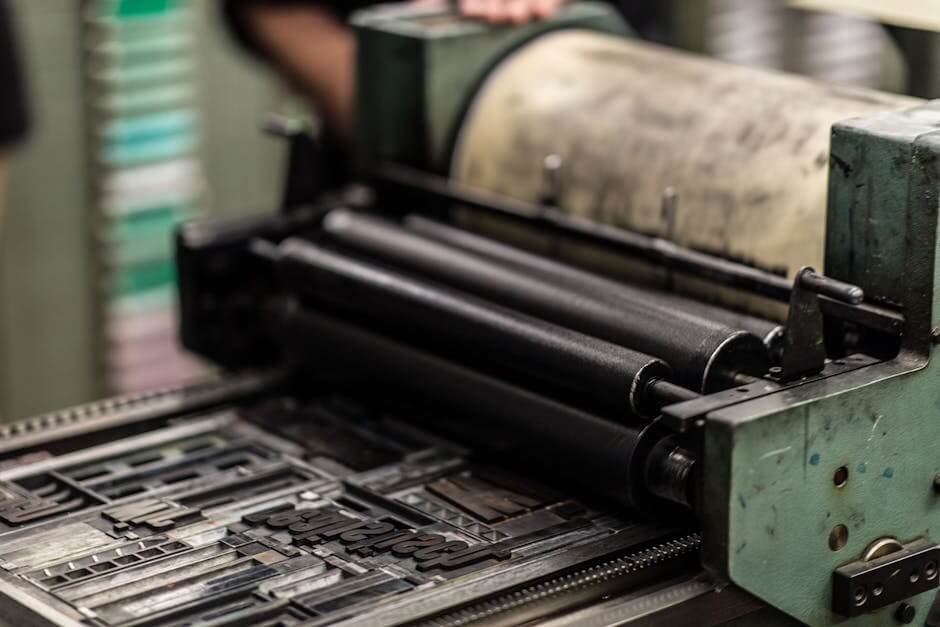
Unlike web design, which is fluid and interactive, print is a tactile experience. You can feel the weight of the cardstock, the texture of a matte finish, or the raised ink of a premium logo. This physical dimension is why print remains a powerhouse in marketing. According to experts at Creativepro.com, the design workflow must consider the entire process from conception to production, not just the digital creation on your screen.
If you are wondering why your business needs to worry about this in a digital world, physical touchpoints build trust. A high-quality brochure or a well-designed business card acts as a silent salesperson. For a deeper dive into how this fits your brand, check out Why Creative Graphic Design is the Secret Sauce for Your Business.
Why Do Colors Look Different from Screen to Print?
The most common frustration for non-designers is the “Screen-to-Print Variance.” You spend hours perfecting a flyer on your monitor, but the physical version comes back darker, duller, or slightly “off.”
This happens because monitors and printers “speak” different languages. Your screen creates colors by mixing red, green, and blue light (RGB). A printer creates colors by layering physical dots of ink (CMYK). Because light is inherently brighter than ink on paper, some colors you see on a screen simply cannot be reproduced in print. To mitigate these differences, professional designers use color management systems and calibrated monitors. As noted in an official U.S. government resource on digital imaging, preparing a digital image for printing is where the most confusion sets in because pixels represent screen space, while print is measured in physical units like inches.
Essential Color Modes: Why CMYK Rules the Press
If you take only one thing from this guide, let it be this: Always design in CMYK for print.
- RGB (Red, Green, Blue): This is the “Additive” color model used for digital screens. It uses light to create color. When you mix all three at full intensity, you get white.
- CMYK (Cyan, Magenta, Yellow, Key/Black): This is the “Subtractive” color model used for graphic design and printing. It uses physical pigments. When you mix these inks, they absorb light, and when you mix them all, you get black (or a very dark muddy brown, which is why “Key” black ink is added for precision).

Designing in RGB for a print project is a recipe for a “color shift.” Bright neon greens or deep electric blues often look vibrant on a screen but turn into dull olives or navy blues when converted to CMYK at the press. By starting your project in CMYK mode, you are seeing a much more accurate representation of what the final ink-on-paper result will actually be.
Technical Specifications for Professional Results
Professional printing is an exercise in precision. When you send a file to a commercial printer, they aren’t just hitting “Print” on a standard inkjet. They are using high-speed machinery that trims thousands of sheets of paper at once. To ensure your design doesn’t end up with important text cut off or ugly white slivers at the edges, you must follow specific technical layout rules. For more on the creative side of these elements, see our guide on Graphic Design.
Mastering Bleed, Safe Zones, and Trimming
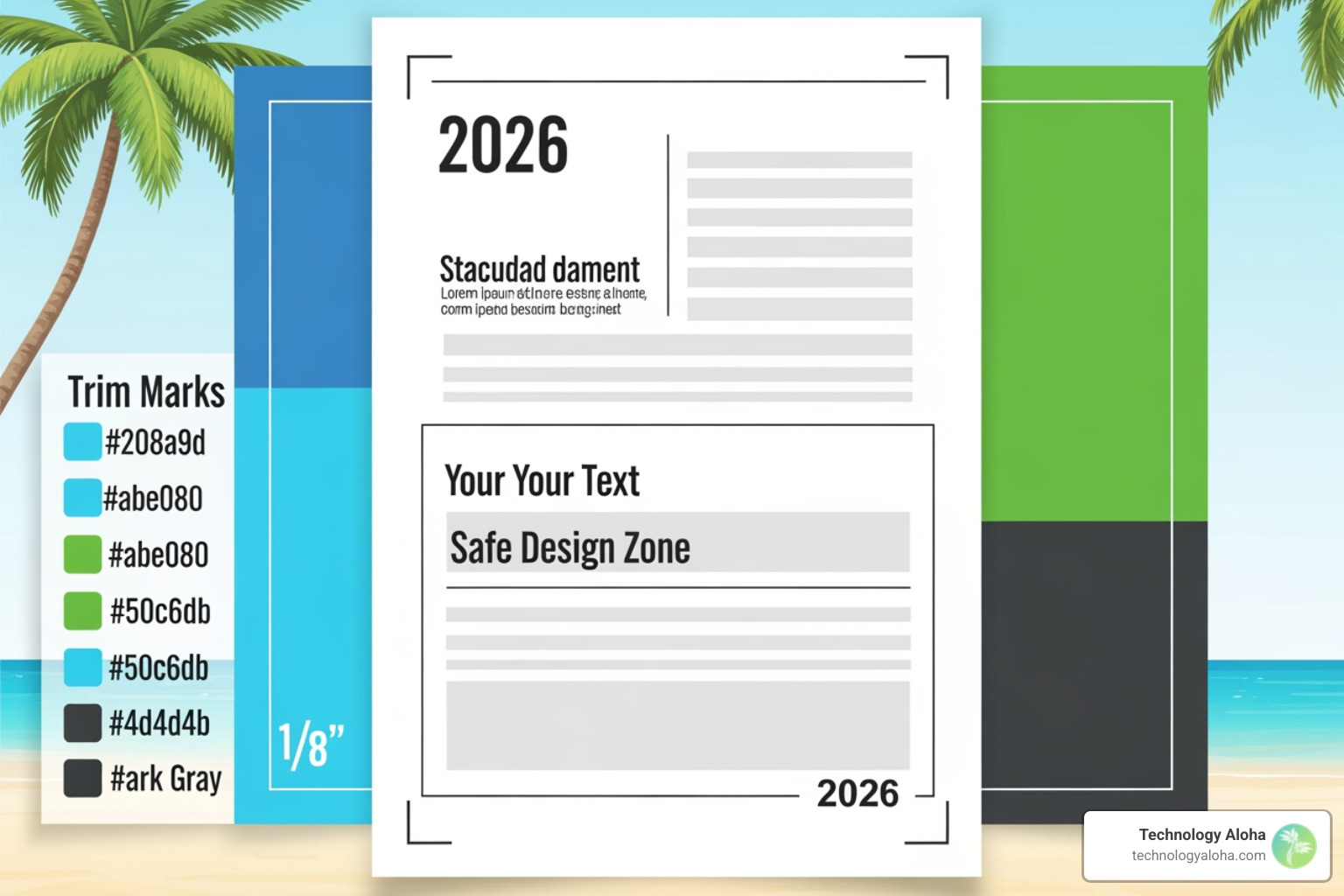
Imagine you are designing a business card with a solid blue background that goes all the way to the edge. If the printer trims the paper even 1/32 of an inch off-center, you’ll end up with a thin white line on one side.
To prevent this, we use Bleed.
- Bleed: This is an extra 1/8 inch (.125”) of background color or imagery that extends beyond the final trim size. If your business card is 3.5 x 2 inches, your design file should actually be 3.75 x 2.25 inches.
- Safe Zone (Live Area): This is the “inner margin.” You should keep all critical text and logos at least 1/8 inch inside the trim line. This ensures that even if the blade shifts slightly during the cutting process, your contact information remains safe and centered.
- Trimming Variance: Industrial cutters are incredibly accurate, but they aren’t perfect. A variance of up to 1/32 of an inch is standard in the industry, which is why bleeds and safe zones are non-negotiable for professional graphic design and printing.
File Formats and Resolution in Graphic Design and Printing
Resolution is the “density” of information in your file. On the web, 72 PPI (Pixels Per Inch) is often enough. For print, you need 300 DPI (Dots Per Inch). If you try to print a low-resolution image from a website, it will look “pixelated” or blurry because there isn’t enough data for the printer to create a sharp image.
Which file format should you use?
- PDF (Portable Document Format): The gold standard for print. It preserves fonts, layout, and colors exactly as you intended. Always “embed” your fonts so the printer doesn’t replace your beautiful typography with Arial.
- TIFF: Best for high-quality photos. It is a “lossless” format, meaning it doesn’t lose quality when saved.
- EPS/SVG: These are “Vector” formats. Unlike photos (raster), vectors are made of mathematical paths. This means you can scale a logo from a business card to a billboard without it ever losing sharpness.
Avoid using JPGs for text-heavy designs, as the compression often leaves “artifacts” (blurry spots) around the letters.
The Print Production Process: From Concept to Delivery
The journey of graphic design and printing follows a logical sequence. It starts with Research and Ideation—understanding the audience and the goal. Then comes Distillation, where we narrow down the best creative direction. Once the design is finalized, it enters the Prepress phase.
Offset vs. Digital Printing: Which is Right for You?
One of the biggest decisions in print production is choosing the method.
| Feature | Digital Printing | Offset Printing |
|---|---|---|
| Setup Time | Fast (No plates needed) | Slow (Requires metal plates) |
| Quantity | Best for small runs (1–500) | Best for large runs (1,000+) |
| Cost | Fixed cost per piece | Cost per piece drops as quantity rises |
| Customization | Variable data (e.g., unique names) | Static (Same image on every piece) |
| Quality | High (Great for 2026 standards) | Superior (Best for color accuracy) |
For a small business in Kahului needing 100 flyers for a local event, digital printing is the winner. If you are a statewide brand printing 50,000 catalogs, offset printing is significantly more cost-effective and provides the highest level of detail.
Choosing the Right Substrate: Paper Weight and Finishes
The “feel” of your marketing materials is just as important as the look. Paper is measured in GSM (Grams per Square Meter) or by “points.”
- Standard Copy Paper: ~80–100 GSM. Good for internal memos, bad for marketing.
- Brochure Paper: ~130–170 GSM. Has a nice “heft” but still folds easily.
- Cardstock: ~250–350+ GSM. Ideal for business cards and postcards.
Finishes also play a role:
- Gloss: Shiny and vibrant. Great for photos.
- Matte: Non-reflective and elegant. Easy to read under bright lights.
- Silk/Satin: A middle ground between gloss and matte.
- UV Coating: A thick, glossy protective layer that makes colors pop and prevents scratching.
Prepress Essentials: Preflight and Imposition
Before the “Big Green Button” is pushed, the printer performs Preflight. This is a digital audit of your file to check for missing fonts, low-resolution images, or incorrect color modes.
Then comes Imposition. This is the process of arranging multiple pages on a single large sheet of paper to minimize waste. For example, a printer might fit 20 business cards on one large 12×18 inch sheet. If your project involves a booklet, imposition ensures that when the pages are folded and stapled (bound), they appear in the correct numerical order.
Strategic Integration of Print and Digital Marketing
In 2026, graphic design and printing shouldn’t exist in a vacuum. Your print materials should be an extension of your digital presence. This starts with a Brand Style Guide—a document that ensures your “Twitter Blue” or “Logo Green” looks the same on your website as it does on your storefront signage. Consistency builds recognition, and recognition builds trust.
A cohesive Marketing Strategy uses print to drive digital action. Think about adding QR codes to your brochures that lead to a custom landing page, or using “Variable Data Printing” to include a personalized discount code for each recipient in a direct mail campaign.
Designing for Specific Products: Business Cards to Banners
Every product has its own “quirks” in the design process:
- Business Cards: Keep it simple. Don’t crowd the card. Use the safe zone religiously.
- Brochures: Always create a “Folding Mock-up.” Take a piece of paper, fold it into thirds, and mark which panel is the front, back, and inside. This prevents you from designing the back cover upside down!
- Banners: Since people view banners from a distance, you don’t always need 300 DPI. 100–150 DPI is often sufficient for large-format prints, which keeps the file size manageable.
- Direct Mail: Leave room for the “Indicia” (the postage permit) and the mailing address. The USPS has very strict rules about where text can go on a postcard.
Frequently Asked Questions about Graphic Design and Printing
Why do colors look different on my screen than on paper?
As we mentioned, screens use light (RGB) while printers use ink (CMYK). Additionally, your screen is backlit, making colors appear more “luminous” than they ever will on a piece of paper that relies on reflected ambient light. To get the closest match, always work in CMYK mode and request a physical “Press Proof” before authorizing a large print run.
What is the difference between DPI and PPI?
These terms are often used interchangeably, but they are different. PPI (Pixels Per Inch) refers to the number of pixels in a digital image on your screen. DPI (Dots Per Inch) refers to the physical dots of ink a printer places on the paper. For a high-quality print, your digital file should be 300 PPI, which allows the printer to produce a crisp output at 300 DPI or higher.
When should I choose offset printing over digital printing?
Choose digital if you need it fast, in a small quantity (under 500 pieces), or if you need each piece to be unique (like personalized letters). Choose offset if you need a large quantity (over 1,000 pieces), need to use specific “Pantone” spot colors for exact brand matching, or want the absolute best price per piece for a bulk order.
Conclusion
Mastering graphic design and printing doesn’t mean you have to become a technical wizard. It simply means understanding the “rules of the road” so your creative vision translates perfectly to the physical world. By focusing on CMYK color modes, maintaining 300 DPI resolution, and respecting bleeds and safe zones, you ensure that your marketing materials look professional, expensive, and trustworthy.
At Technology Aloha, we specialize in this exact intersection. We provide strategic positioning and data-driven design that blends cohesive branding with high-conversion results. Whether you are in Kahului or anywhere across Hawaii, we help you bridge the gap between a digital concept and a stunning physical product.
Ready to elevate your brand with professional design that actually works? Graphic Design can help you put your best foot forward—both on the screen and in print.